 Destora
How Destora works for providers.
Register, get verified, complete your listing, get approved and start getting customers. This short guide explains how it works and tells you which detailed guide to open for your service.
The six-step provider journey.
Register
Make your account and your listing
Verify ID
Show who you are, once
Complete listing
Fill every step until all ticks are green
Send for review
Destora checks your listing
Fix if asked
Change what Destora asks, send again
Go live
Customers can find and book you
Which guide is mine?
Choose your service in the app and open its matching step-by-step guide:
| If you are a... | Choose in the app | You will need | Money |
|---|---|---|---|
| Plumber | Housekeeper & Maintenance > Plumber |
| Registering is free |
| Electrician | Housekeeper & Maintenance > Electrician |
| Registering is free |
| Maid / House Help | Cleaning & Household > Maid Service |
| Registering is free |
| Laundry Service | Cleaning & Household > Laundry Service |
| Registering is free |
| Cab Driver | Daily Commuting > Cab |
| Registering is free |
| Bike Rider (Bike Taxi) | Daily Commuting > Bike |
| Registering is free |
| Property Broker | Property & Real Estate > Broker |
| Fees per property or monthly plan (see guide) |
| Property Owner | Property & Real Estate > Property Owner |
| Fees per property or monthly plan (see guide) |
From registration to getting customers.
Follow these five core milestones in the Destora app.
Register
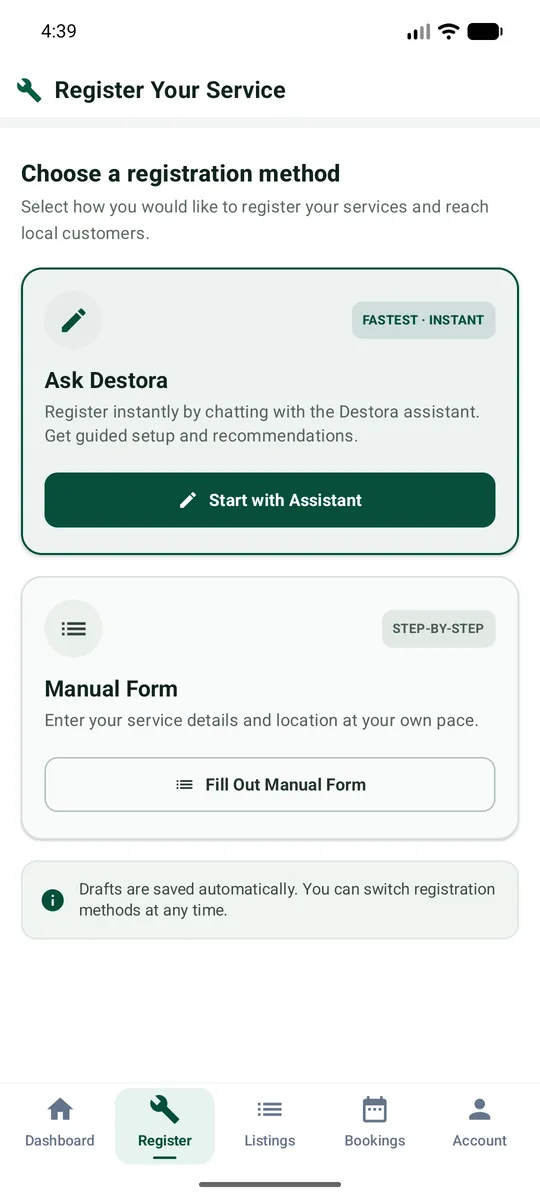
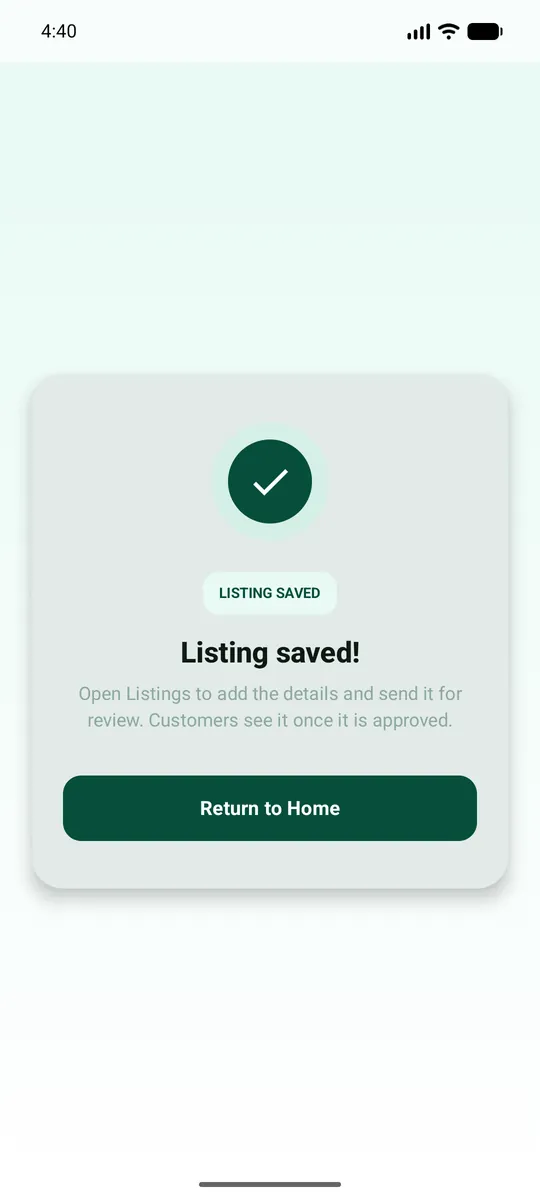
Log in with your e-mail and the 6-digit code, choose Offer services and earn, fill the manual form (category, service type, address on the map) and tap Register & List Service. Free.
Verify who you are
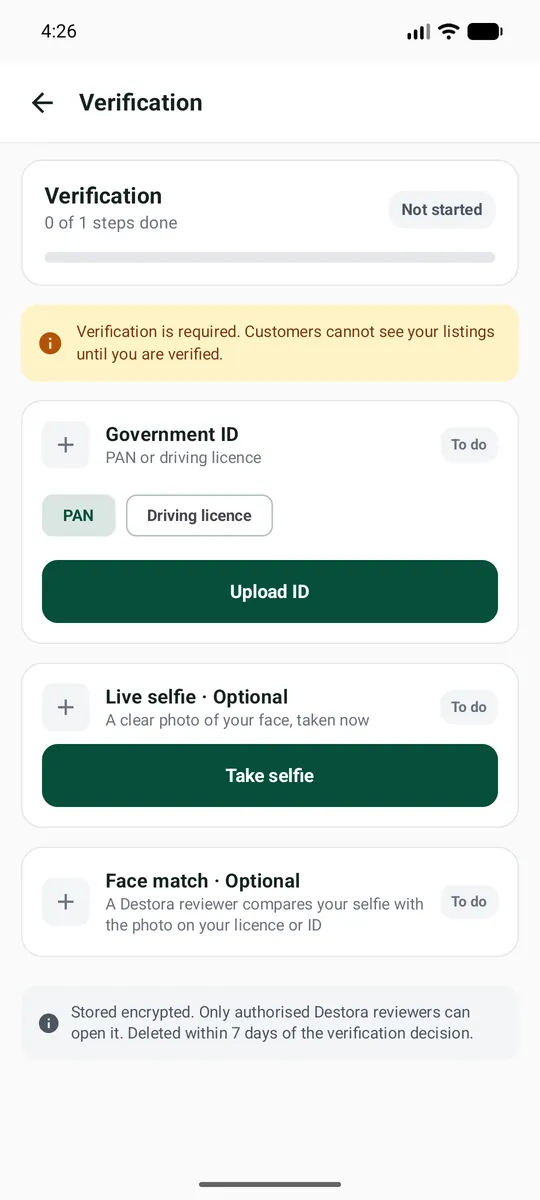
Open Account > KYC Verification, add your PAN card or driving licence (DigiLocker or a photo), a selfie when required, and your service documents. You do this once.
Complete your listing
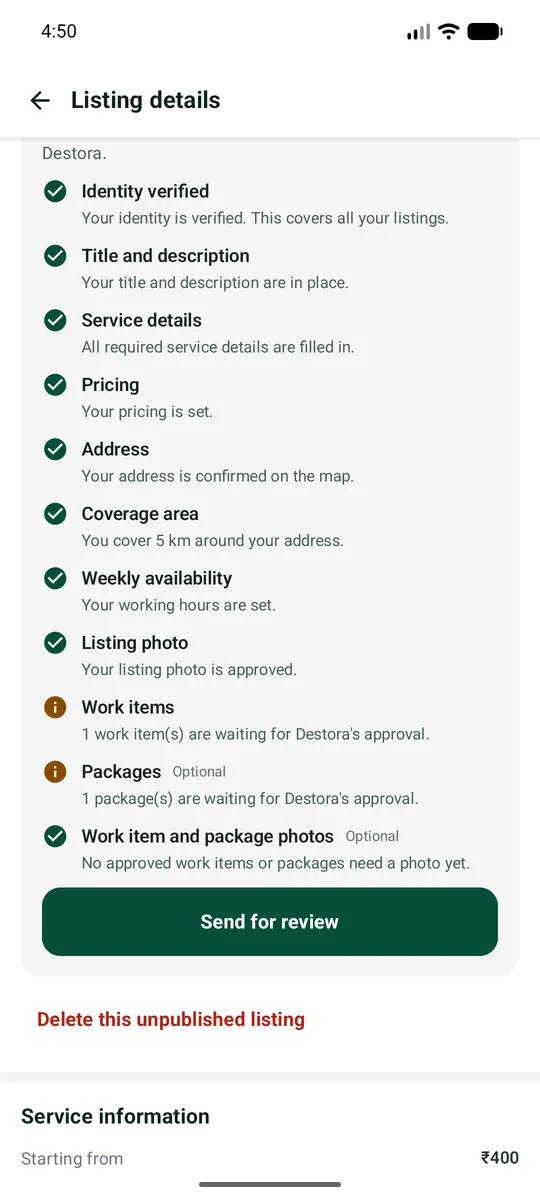
Open the Listings tab. Fill every step of the checklist until all required lines have a green tick: title and description, service details, pricing, coverage, availability, listing photo and work items.
Send for review
Tap Send for review. Destora checks your documents, details, prices and photos. If anything is wrong you get a message and an e-mail. Fix it and send again.
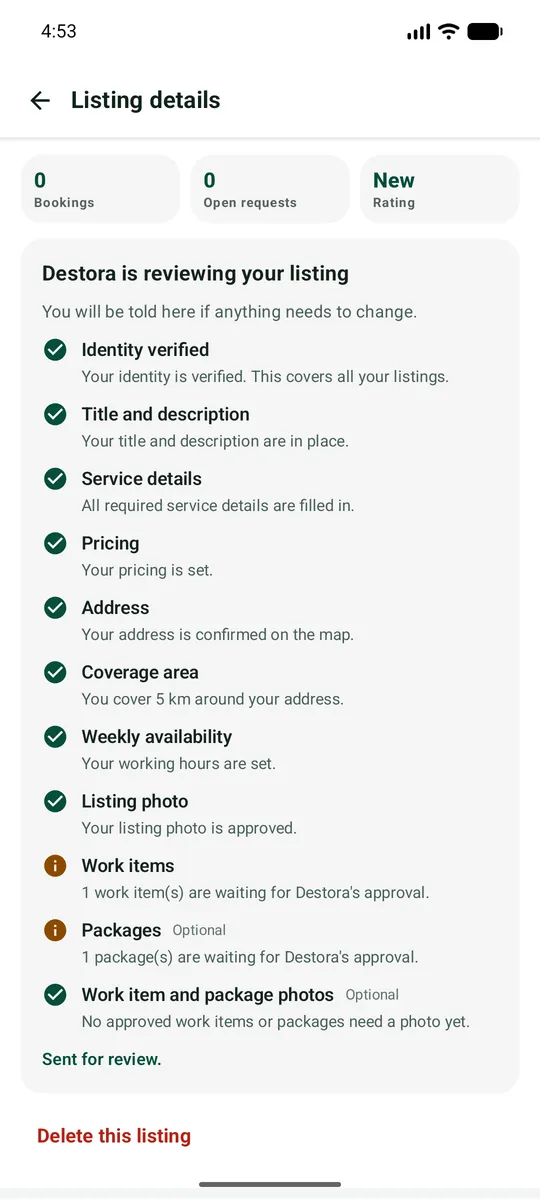
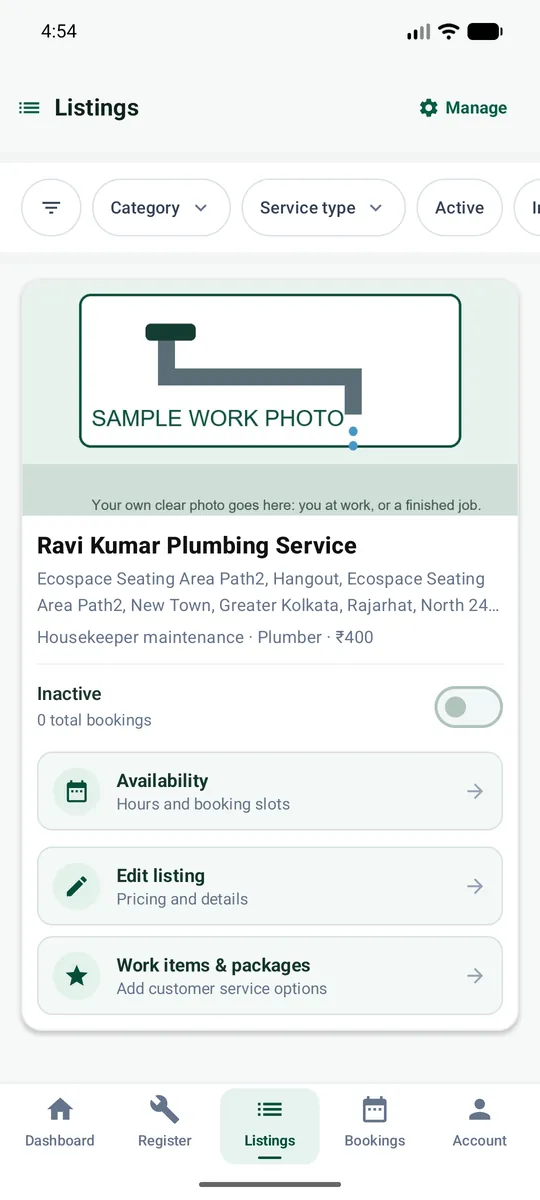
Go live
When the listing says ACTIVE and the switch is ON, customers near you can find and book you.
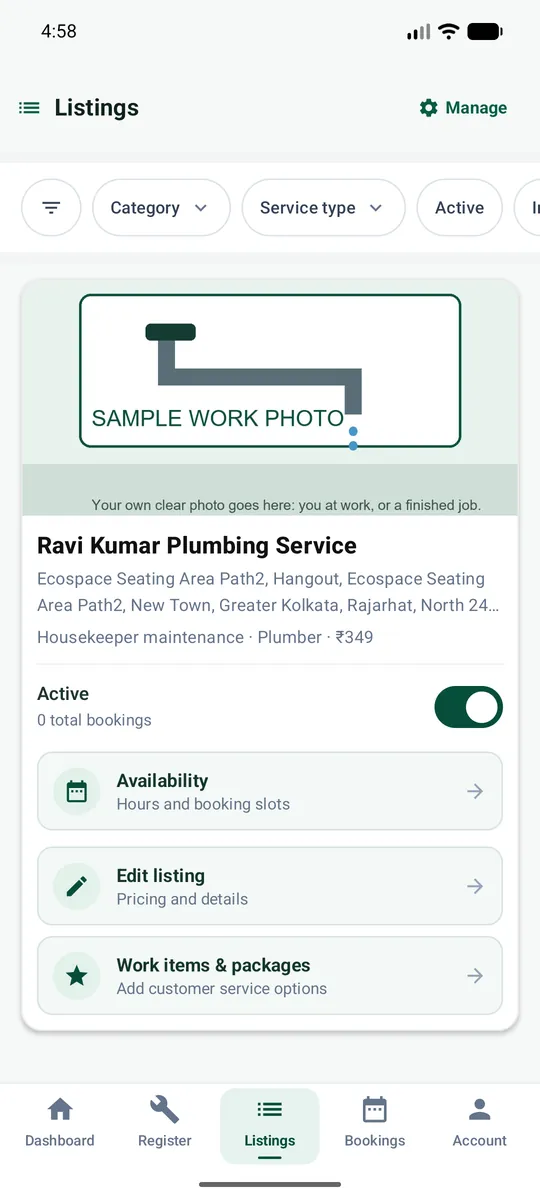
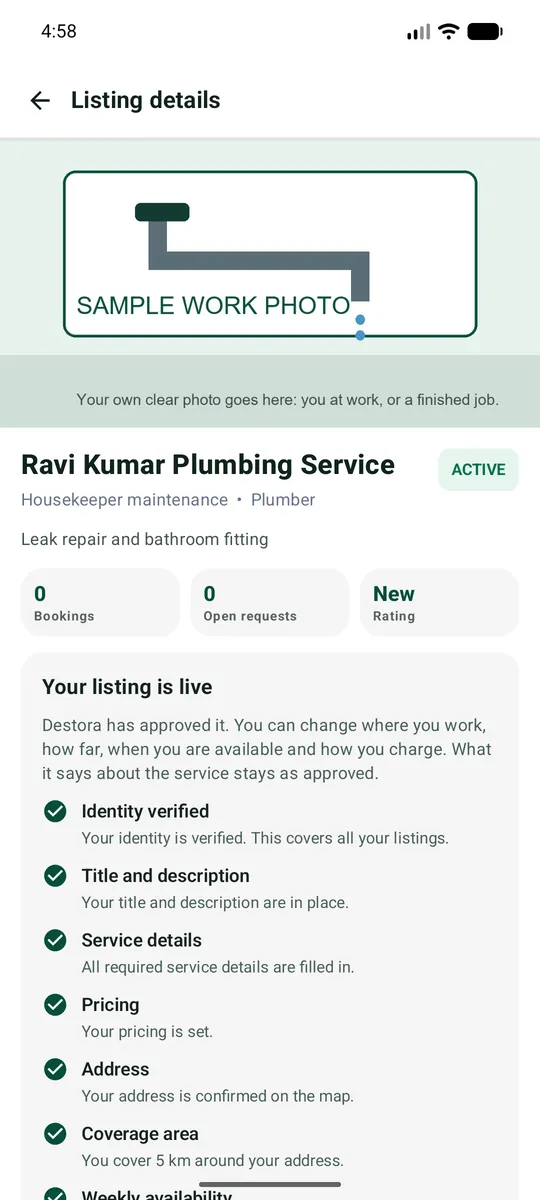
Every status, and what it means.
What Destora checks
- Your identity documents and selfie.
- Your title, description and details: are they honest and clear?
- Your prices and work items.
- Your photos: are they real, clear and your own?
- Your address and coverage.
Listing statuses you see
| Status you see | What it means | Do customers see you? | What you do |
|---|---|---|---|
| DRAFT | Your listing is created, but you are still setting it up (or you have not sent it). | No | Finish the checklist and tap Send for review. |
| PENDING / In review | You sent it. Destora is checking. | No | Wait. Nothing to do. |
| Changes asked | Destora wrote what to fix. A red message shows on your Dashboard and the steps have red triangles with comments. | No | Read the comments, tap Fix this, then Send for review again. |
| ACTIVE | Approved! Your listing is live. | Yes - if the switch is on | Keep your work items and availability up to date. |
| INACTIVE | You switched the listing off (or it was paused). | No | Switch it on when you are ready to work. |
| SUSPENDED | Destora stopped the listing, for example after complaints or a problem with documents. | No | Check your e-mail for the reason and write to support@destora.in. |
Work items and packages have their own review
| Status on the item | Meaning | Visible to customers? |
|---|---|---|
| In review | Waiting for Destora. "Switched on, goes live once Destora approves." | No |
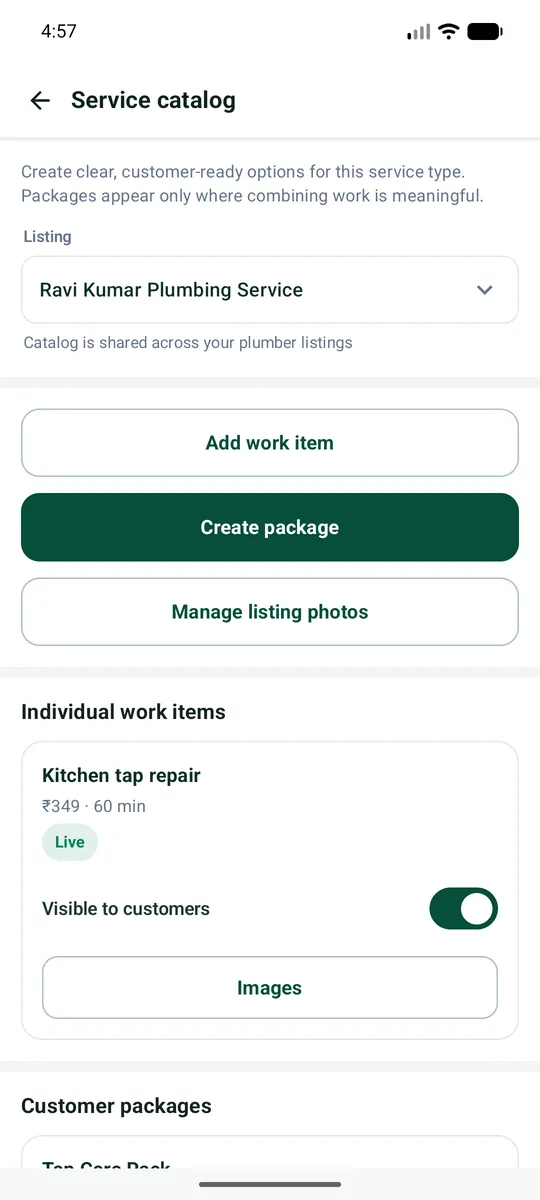
| Live | Approved and switched on. | Yes |
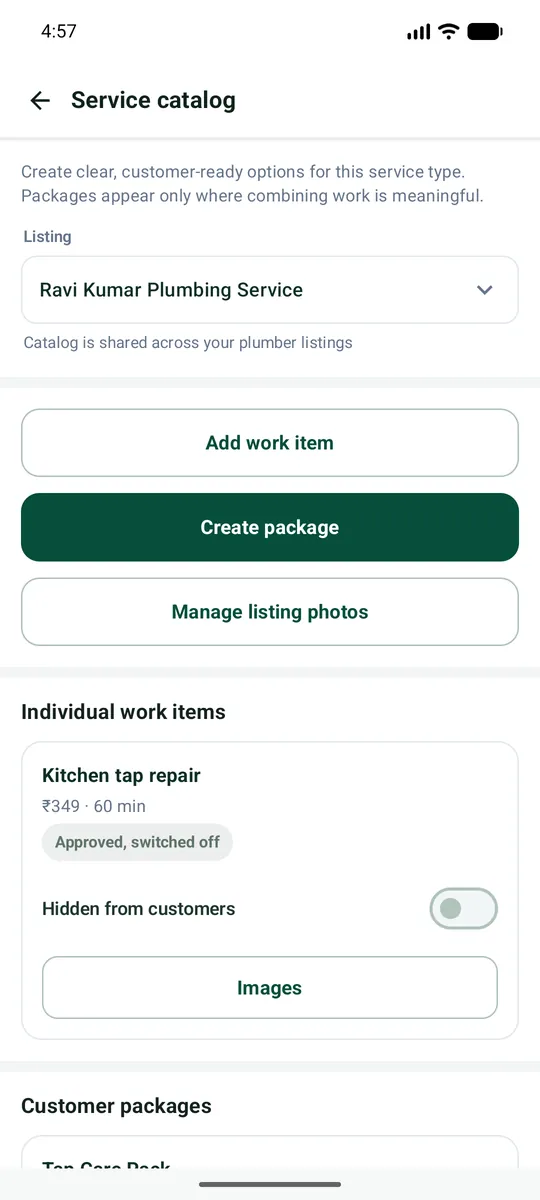
| Approved, switched off | Approved, but you turned the switch off. | No |
| Rejected | Destora did not accept it. The reason is shown. | No |
When customers can see you, and when not.
Customers CAN see and book you when ALL of these are true:
- Your listing is ACTIVE and its switch is ON.
- Your identity is Verified.
- You have at least one Live work item (approved and switched on).
- The customer is inside your coverage area.
- You are available: within your working hours, or you accept ASAP jobs, and not on a day off.
Customers CANNOT see you when ANY of these is true:
- ✕Listing is DRAFT, In review or has changes asked.
- ✕Listing is INACTIVE (switch OFF) or SUSPENDED.
- ✕Identity is Pending, Rejected or not done.
- ✕All your work items are In review, Rejected or switched off.
- ✕The customer is outside your coverage area.
Switch an item off (or the whole listing)
Need a break or an item is not available today? You can switch a work item or a package off without deleting it. It stays approved, but customers do not see it. Switch it back on any time.
To pause everything, switch the listing switch OFF on the Listings tab.
Questions and problems.
| Problem | What to do |
|---|---|
| I did not get the e-mail code | Wait a minute. Check Spam / Promotions. Check you typed the e-mail without a mistake. Tap Use another email if it is wrong. |
| The map pin is in the wrong place | Go back to the map, zoom in, and drag the pin to the right building. Confirm again. |
| My ID was rejected | Open Account > KYC Verification. Read the reason. The usual reasons: blurry photo, name does not match your account, expired document. Send a new, clear photo. |
| The Send for review button is not showing | At least one required step still has a red triangle. Scroll the checklist and tap Fix this on each red step. |
| My work item says In review for a long time | Destora checks items in turn. If more than 2 working days pass, write to support@destora.in with your listing name. |
| My listing is ACTIVE but I get no requests | Check: the switch is ON, a work item is Live, your coverage radius is big enough, your hours are set, and your price is fair compared with others. Add a good photo and a longer description. |
| I changed something but the app still shows the old thing | Pull down to refresh, or close and open the app. Updates show within a few seconds. |
| I want to change my address or service type | Address: Edit listing > Location. Service type cannot be changed; register a new service for that. |
| Someone asks me to pay for approval | Never pay. Write to support@destora.in. |
| I forgot how to log in | Open the app, tap Get Started, type the same e-mail, and type the new 6-digit code. |
Still stuck?
Write to support@destora.in. Tell us your registered e-mail, your service type and a screenshot of the problem. You can also open Account > Help & Support in the app.
Explore detailed service guides
Open the exact guide for your profession with screen-by-screen instructions.