 Destora
How to register and list as a Plumber on Destora
Everything you need to register, complete your listing, get approved by Destora and start getting customers — step by step.
Before you start — keep these ready
- A phone with the Destora app installed, and internet.
- Your e-mail address (we send a 6-digit code to it). Use an e-mail you can open right now.
- Your exact address (you will pick it on a map). Switch on location (GPS) on your phone.
- Your PAN card or your driving licence (either one is enough)
- A live selfie is optional (it helps you get trusted faster)
- One clear photo of your own work or your service (see the photo tips later).
- Your price list: what you charge for each job, and how long each job takes.
- About 30 to 45 minutes for the first time.
The pictures in this guide were taken in the real Destora app while registering a Plumber. The screens look the same for every service; only the names of some fields change. Those are listed in the “Your service” part.
Register your account and listing
Open the app
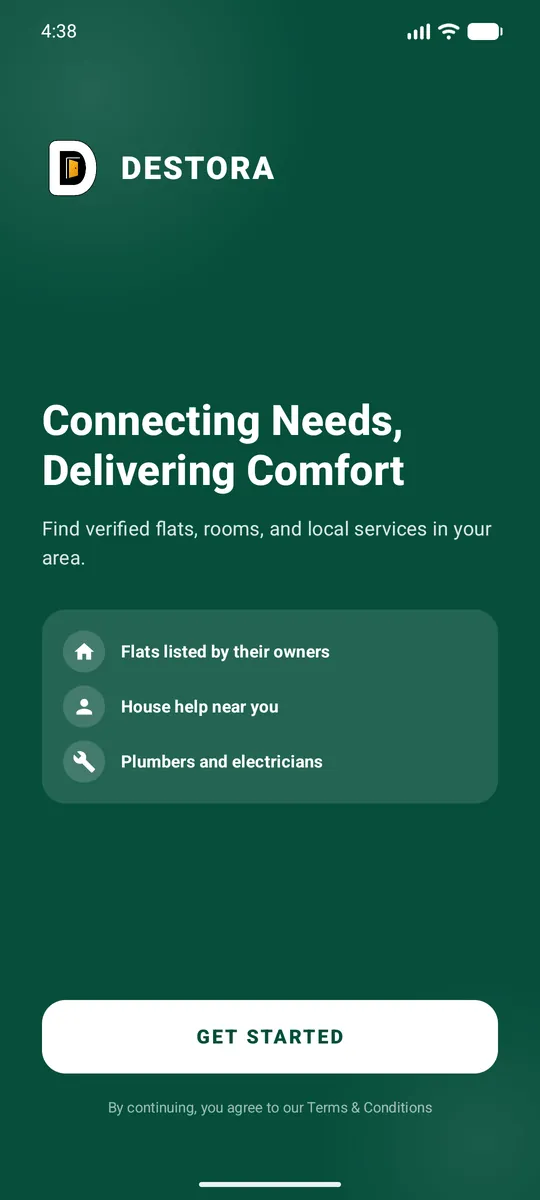
Open the Destora app. On the first screen tap GET STARTED.
Type your e-mail
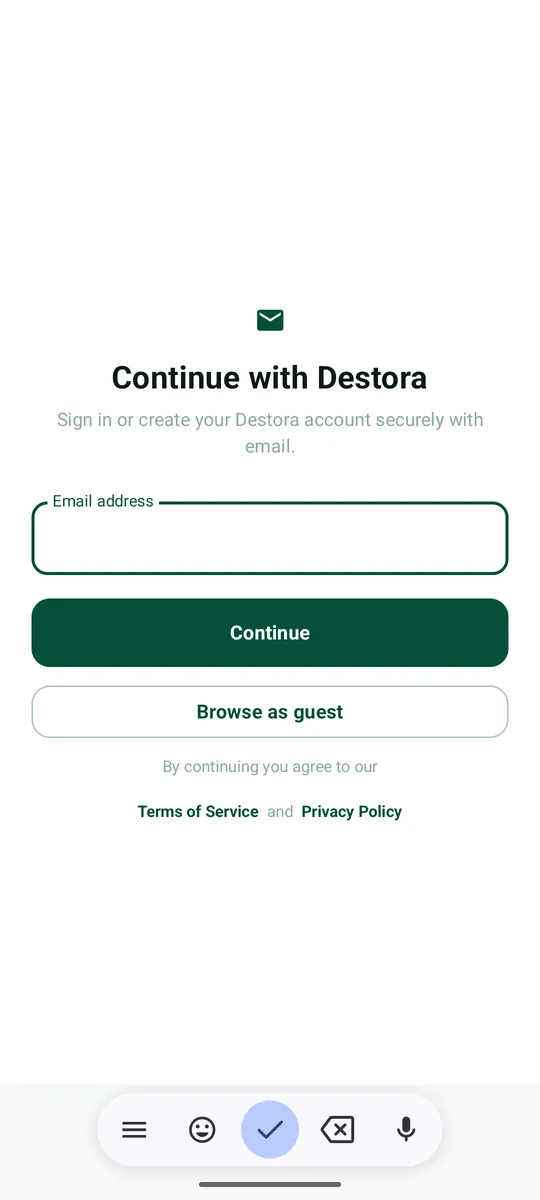
Type your e-mail address and tap Continue.
Type the 6-digit code
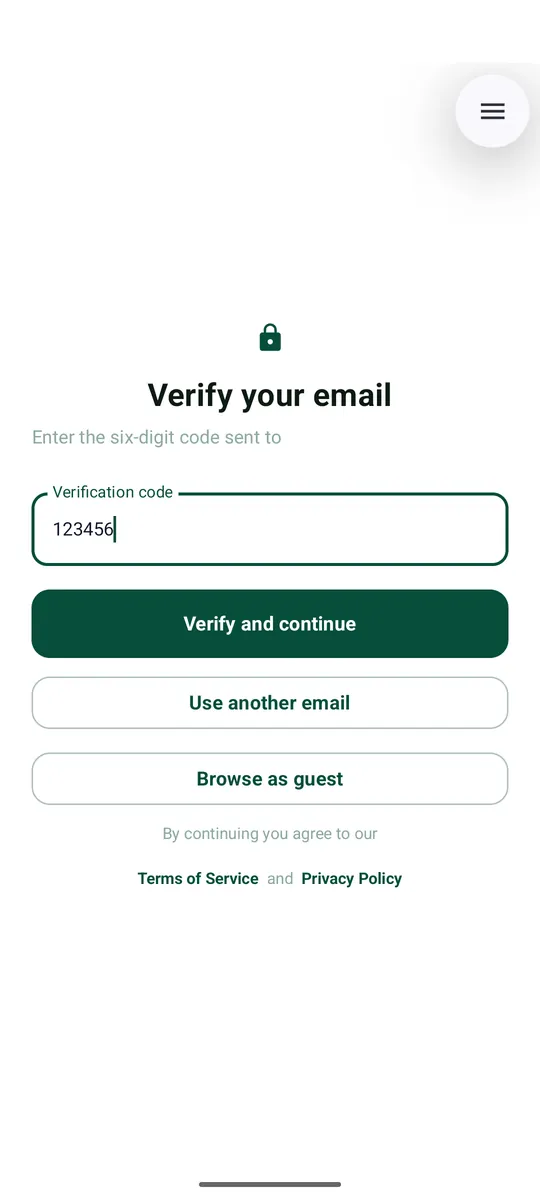
We e-mail you a 6-digit code. Open your e-mail, find the code, type it in the box and tap Verify and continue.
Choose: Offer services and earn
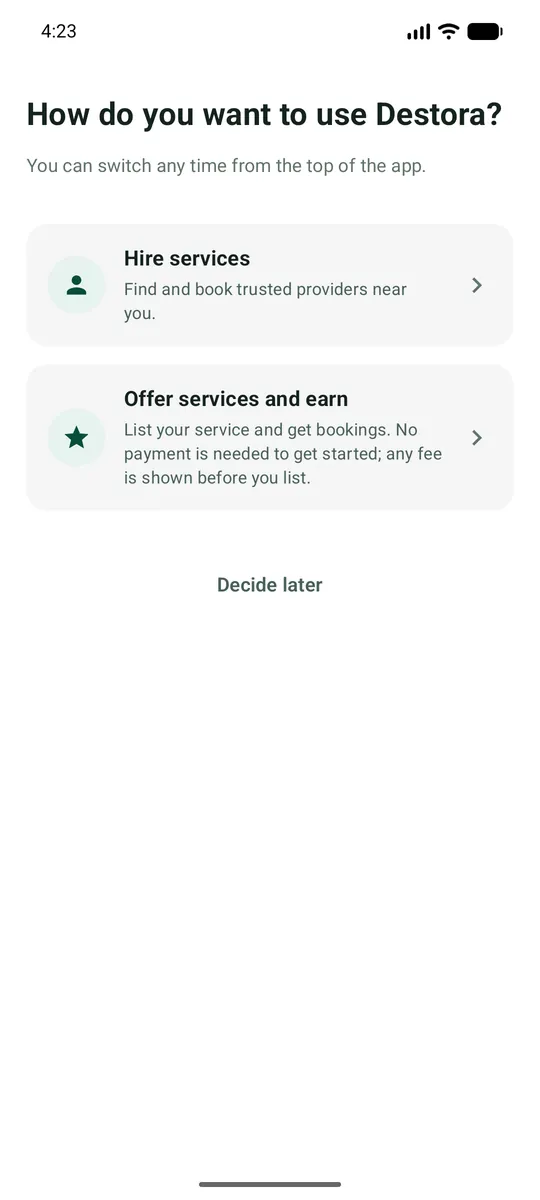
The app asks how you want to use Destora. Tap Offer services and earn.
("Hire services" is for customers. You can switch any time from the top of the app.)
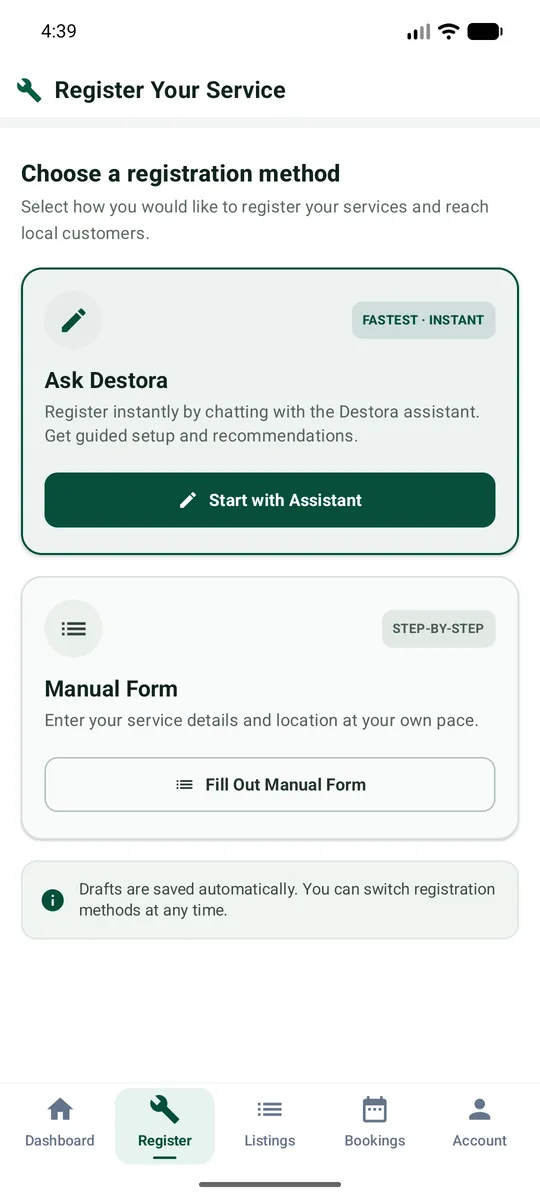
Choose the manual form
On Register Your Service you can use the Destora assistant, or fill the form yourself. We suggest the form because you see everything. Tap Fill Out Manual Form.
Choose your category and your service
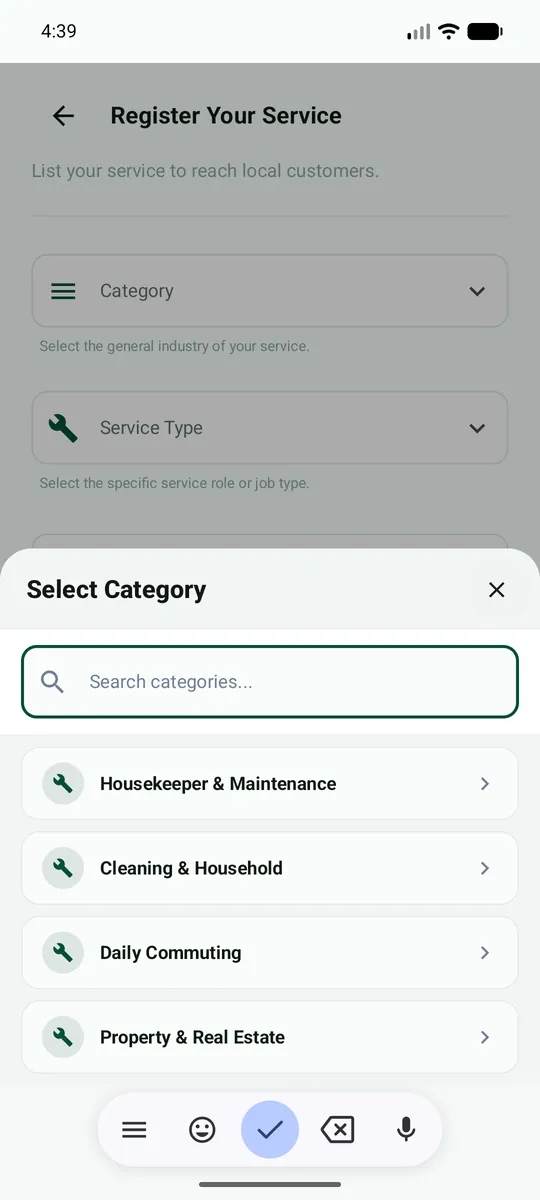
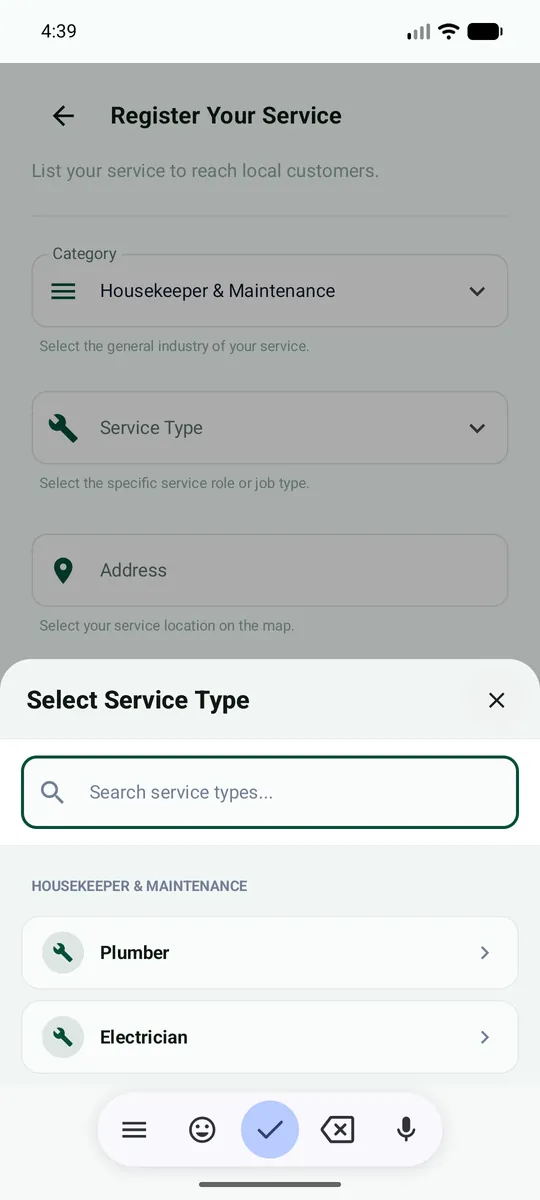
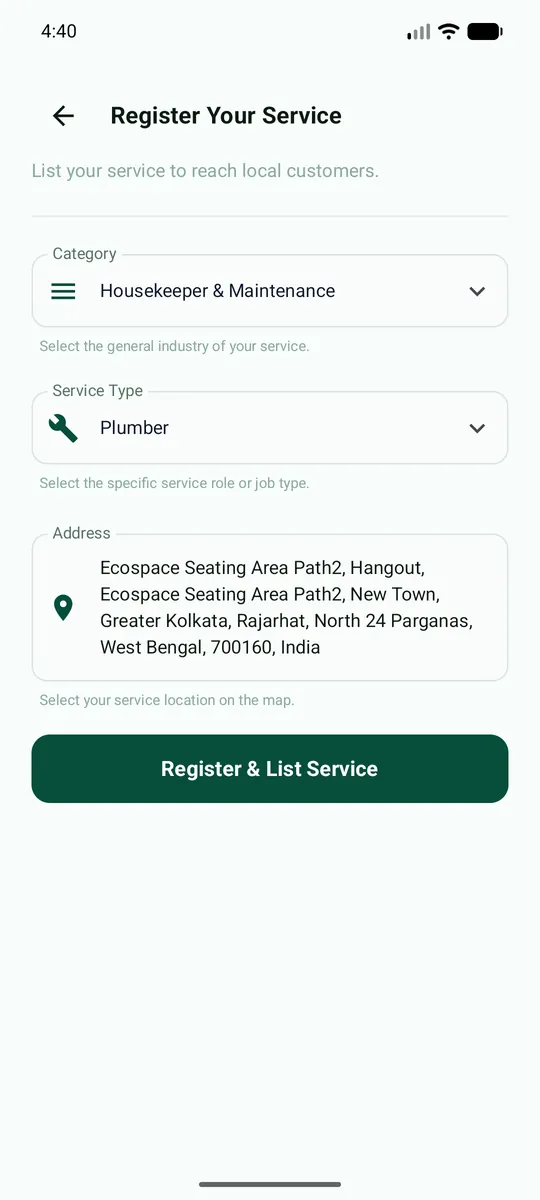
Tap Category and choose Housekeeper & Maintenance. Then tap Service Type and choose Plumber.
The pictures show an example (a Plumber being registered). On your phone you choose Housekeeper & Maintenance and Plumber.
Pick your address on the map
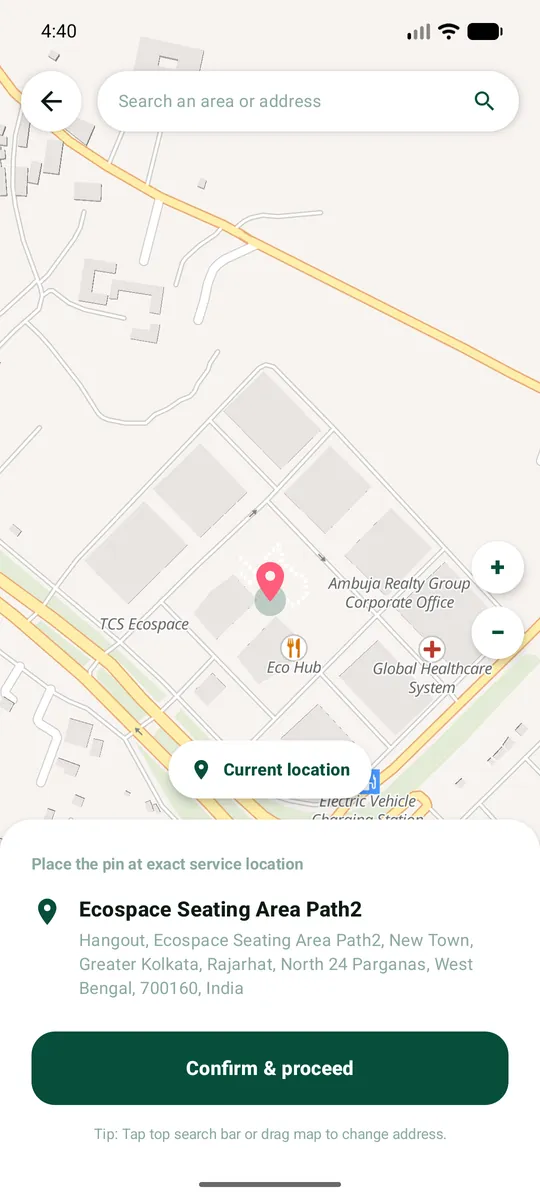
Tap Address. Allow location if the phone asks. A map opens. Move the pin to the exact place where you work from or live (you can also search for the address at the top). Then tap Confirm & proceed.
Customers near this place will find you, so the pin must be right.
Register & List Service
Check the three fields (category, service type, address). Then tap Register & List Service.
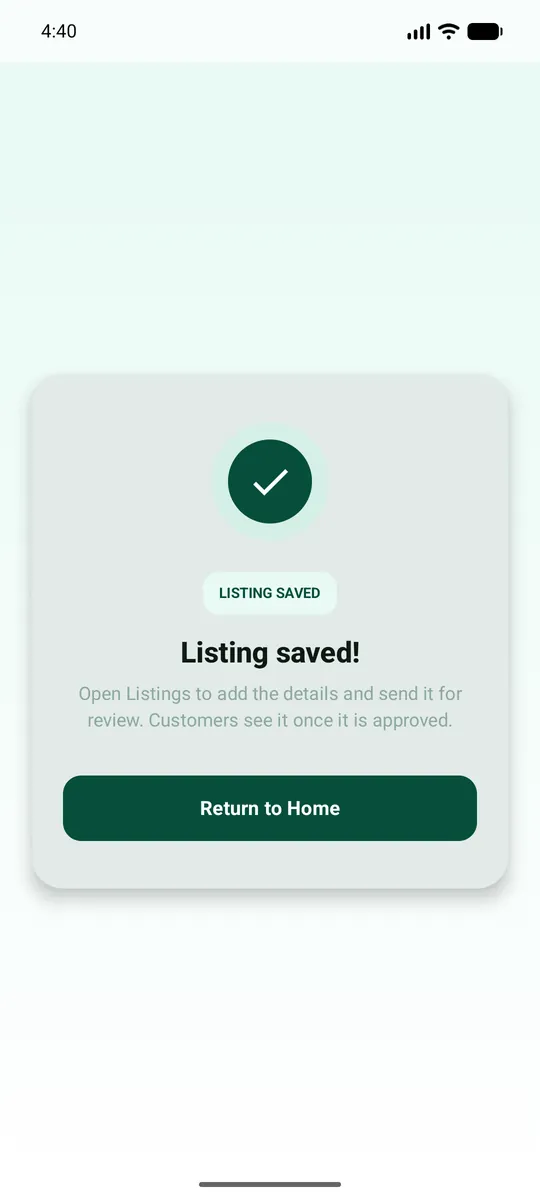
You will see Listing saved! This means your listing was created. It is not live yet. Tap Return to Home.
Verify who you are (one time)
Customers will only see you after Destora has confirmed who you are. You do this one time. It then covers all your listings.
Open Verification
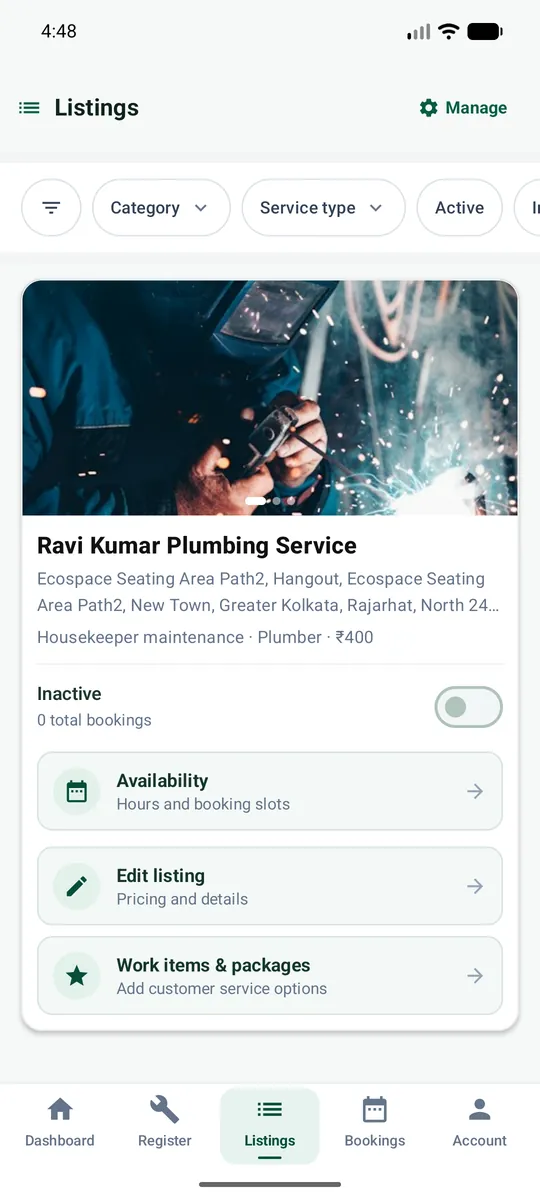
Tap the Listings tab. Your new listing is there. You will see a yellow box: Complete your one-time KYC to make your listing visible to customers. Tap Open KYC.
You can also reach it from Account > KYC Verification.
Add your ID document
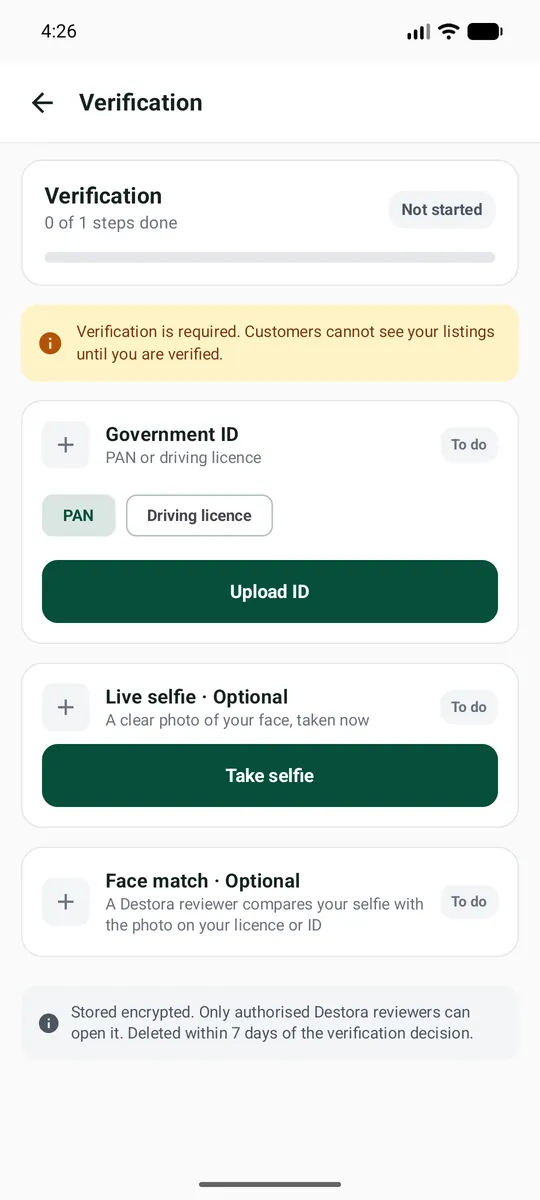
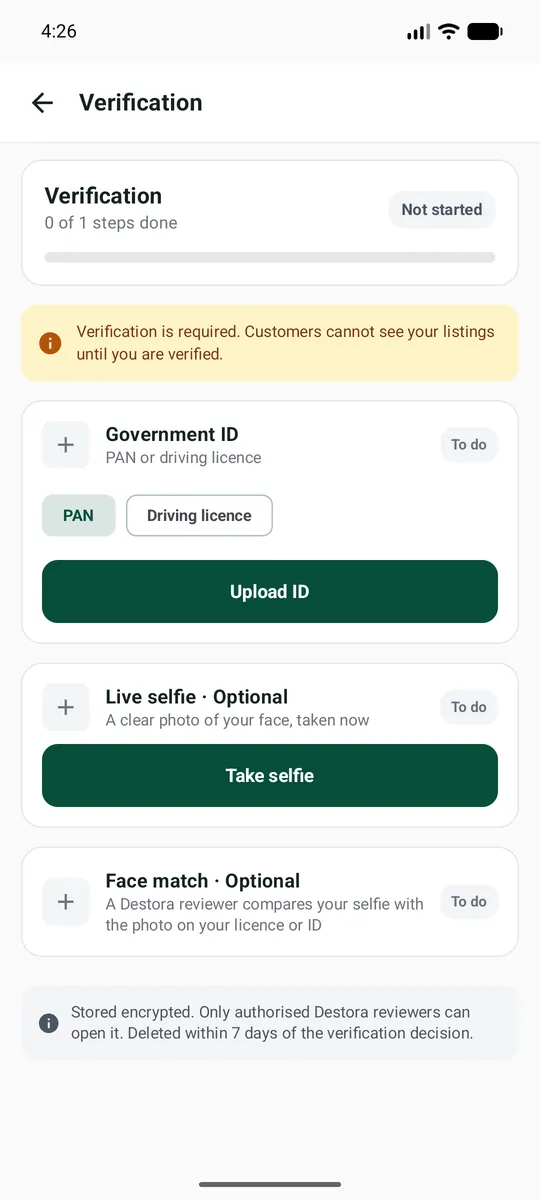
Under Government ID choose which document you will give (PAN or Driving licence), then tap Upload ID.
Read and agree
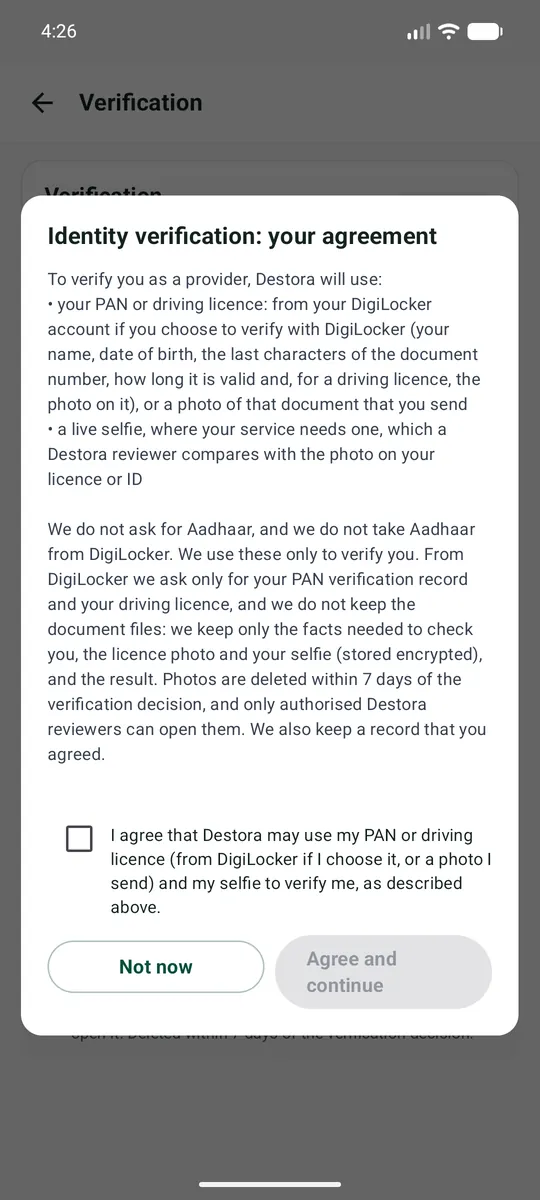
A box explains what Destora does with your document. Read it, tick the box, then tap Agree and continue.
In short: we use your document only to check who you are. We never ask for Aadhaar. Photos are stored encrypted and deleted within 7 days after the decision.
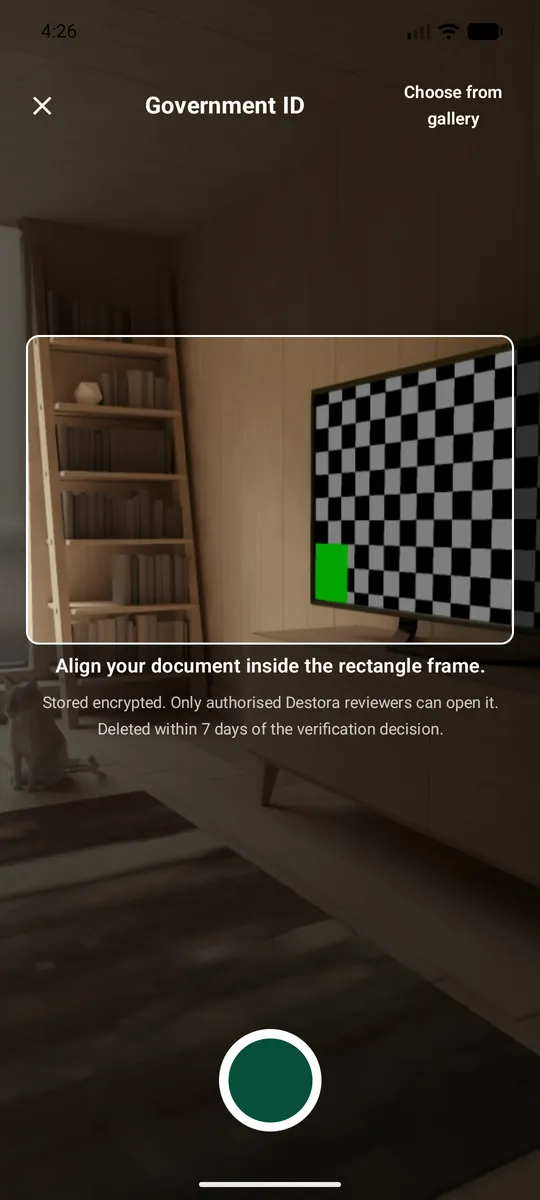
Take the photo
The camera opens (or choose from gallery). Fit your document inside the rectangle, make sure it is sharp, and take the picture. Do the same for the other side if the app asks.
Selfie and face match
Live selfie: for your service the selfie is optional. Tap Take selfie, look at the camera in good light, no cap or sunglasses.
Face match means a Destora reviewer compares your selfie with the photo on your ID. It happens automatically after you add both.
What happens next
| Verification status | What it means | What you do |
|---|---|---|
| Not started | You have not added any document yet. | Do steps 1 to 5 above. |
| Pending | Destora is checking your documents. | Wait. You can keep filling your listing meanwhile. |
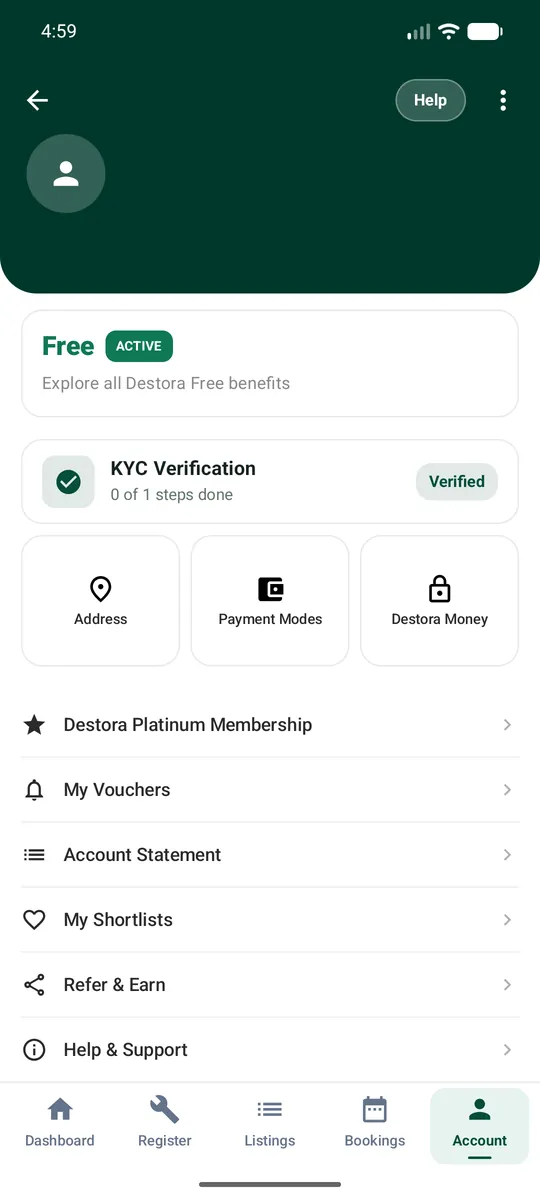
| Verified | You are verified. The Account screen shows KYC Verification: Verified. | Nothing. This covers all your listings. |
| Rejected | A document was not accepted. The reason is written in the app and in an e-mail. | Open Verification, read the reason, send the document again. |
Check that you are verified
Open Account. The tile KYC Verification shows Verified in green when you are done.
Plumber
You are registering as a Plumber.
| For your service | |
|---|---|
| Where to find it | Category: Housekeeper & Maintenance > Service type: Plumber |
| Documents |
|
| Who checks them | A person at Destora looks at uploaded photos. A DigiLocker result that matches your name can be approved without waiting. |
| Packages | Yes, you can bundle work items into packages (optional). |
Details you will fill in the listing
| Field | What it means | Example |
|---|---|---|
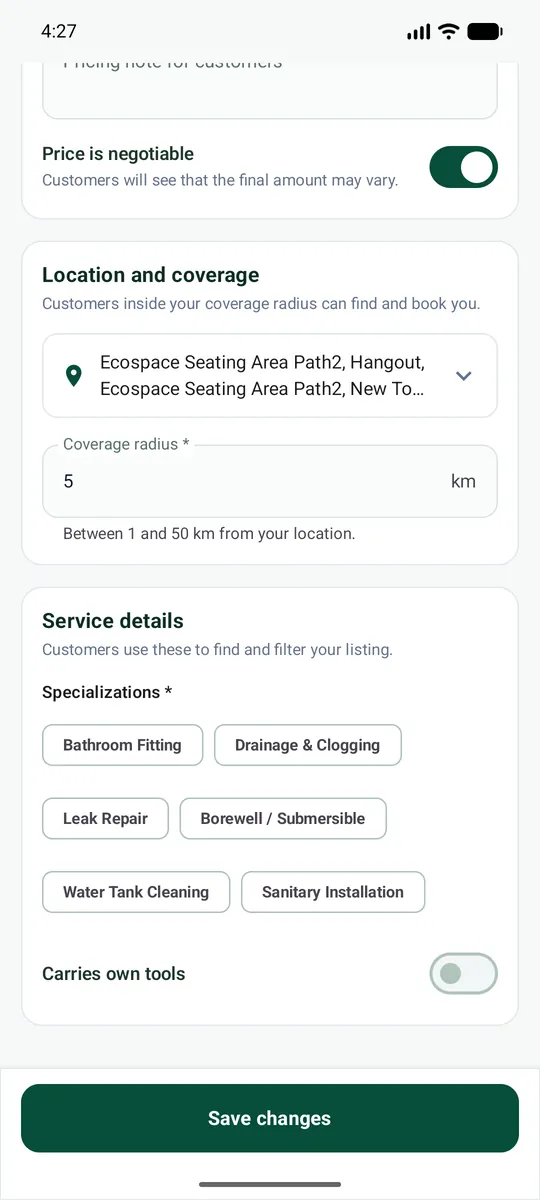
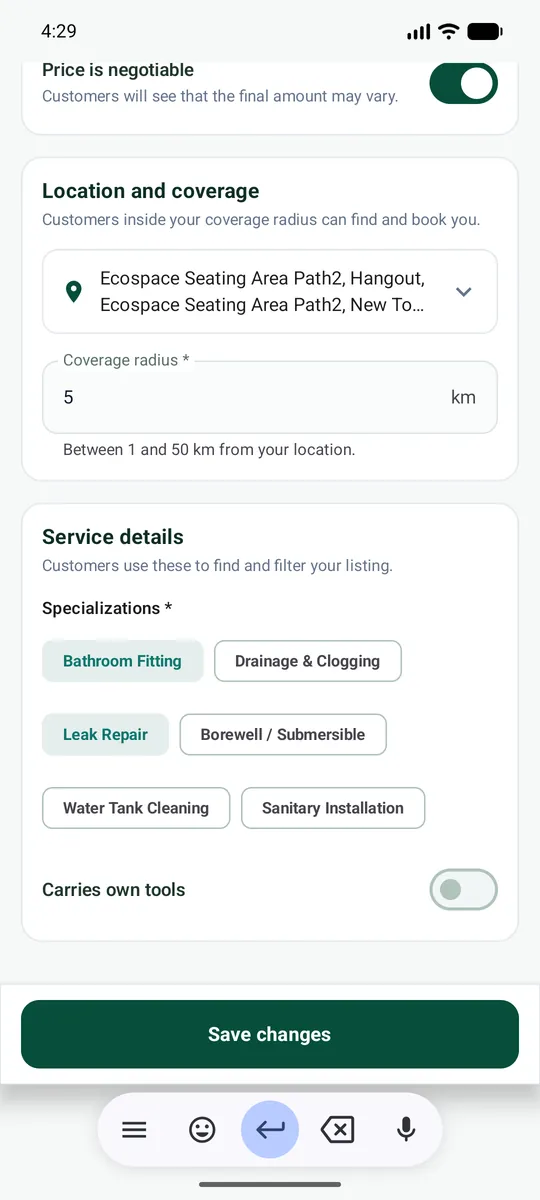
| Specializations * | The kinds of plumbing work you do. Tick everything you really do. | Bathroom Fitting, Leak Repair, Drainage & Clogging |
| Carries own tools | Switch on if you bring your own tools. Customers can filter for this. | Yes |
| Emergency / 24x7, Pipe materials, Visiting charge | Shown only if your app asks for them. Fill them honestly. | PVC, CPVC, GI |
Money: what you pay and when
| Item | Amount |
|---|---|
| Registering and listing | Free |
| Anything else | If any fee applies to you, the app shows the exact amount before you pay. Never pay anyone outside the app. |
Complete your listing
Your listing is your shop window. It is complete when every required step on the checklist has a green tick.
Open your listing
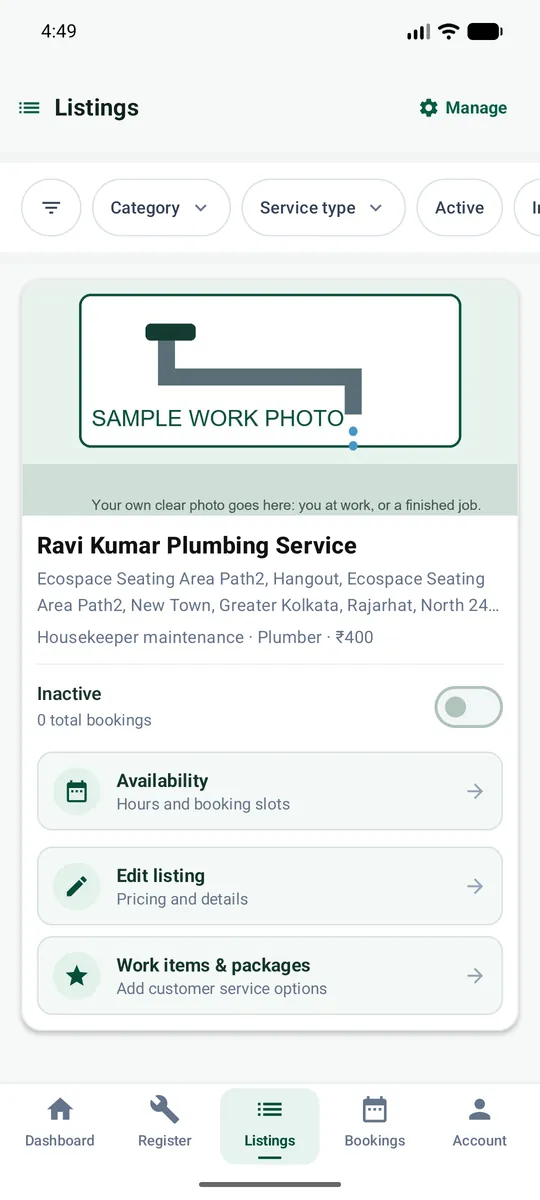
Go to the Listings tab. You see your listing card with a switch (Inactive) and four buttons:
- Availability - your hours
- Edit listing - pricing and details
- Work items & packages - what you sell
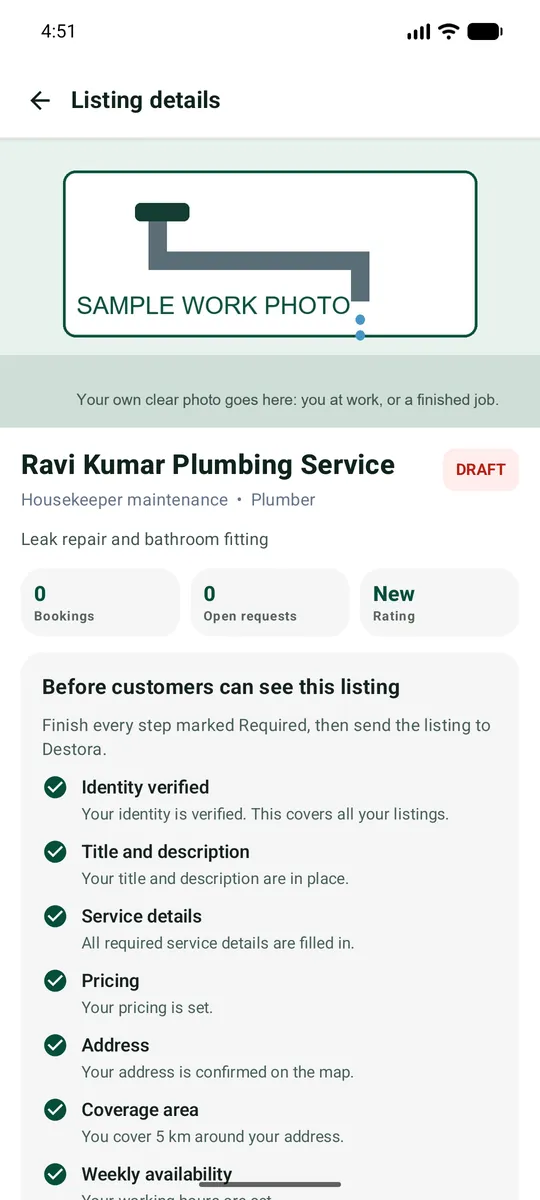
Tap the picture or the name to open Listing details.
Read the checklist
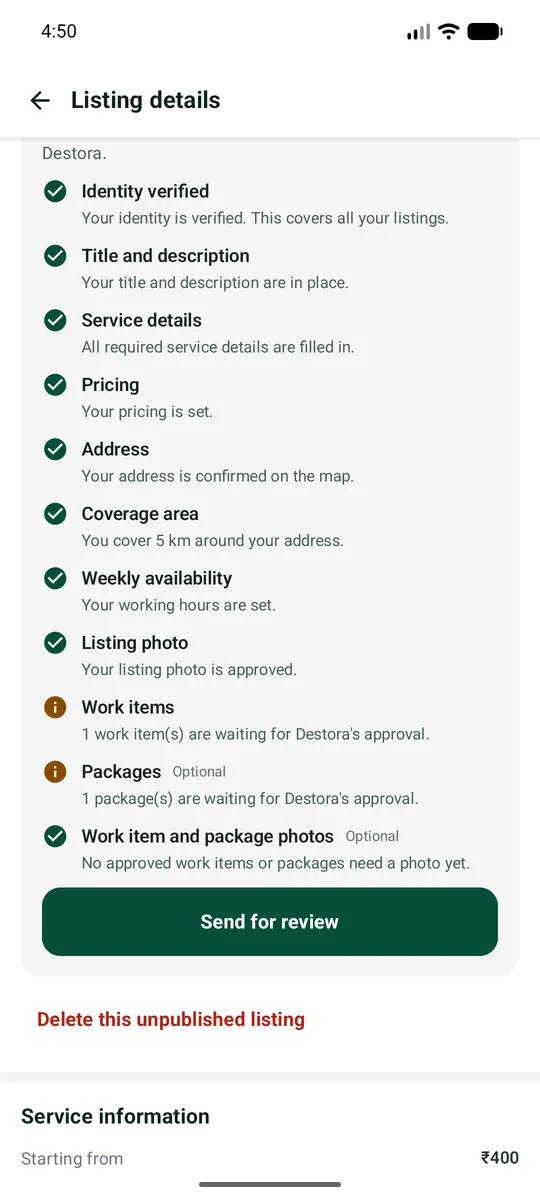
At the top of Listing details is the box Before customers can see this listing. Each line is one step. The sign in front of it tells you where you are:
| Sign | Meaning |
|---|---|
| green tick | Done |
| orange dot | You did your part. Waiting for Destora. |
| red triangle | You must do something. Tap Fix this. |
All the checklist steps explained
| Step on your checklist | What it means | Where you do it | Who |
|---|---|---|---|
| Identity verified | You have shown who you are (Part 2). | Account > KYC Verification | You + Destora |
| Title and description | A name for your listing and a few sentences about you. Description needs at least 20 characters. | Edit listing | You |
| Service details | The details your service needs (see Your service). | Edit listing | You |
| Pricing | A base price, or at least one approved work item with a price. | Edit listing / Work items | You + Destora |
| Address | Your address, confirmed on the map. | Done at registration | You |
| Coverage area | How far you travel from your address: 1 to 50 km. | Edit listing | You |
| Weekly availability | The days and hours you work. If your service is booked only for "now", or if you list property, the app ticks it for you. | Availability | You |
| Listing photo | One clear photo of your service. Destora approves it. | Manage listing photos | You + Destora |
| Work items | At least one work item (a job with a price and a time). Destora approves each one. | Work items & packages | You + Destora |
| Packages (optional) | Bundles of work items at one price. | Work items & packages | You + Destora |
| Work item and package photos (optional) | A photo for each item or package. | Work items & packages > Images | You + Destora |
Edit listing: title, tagline, description
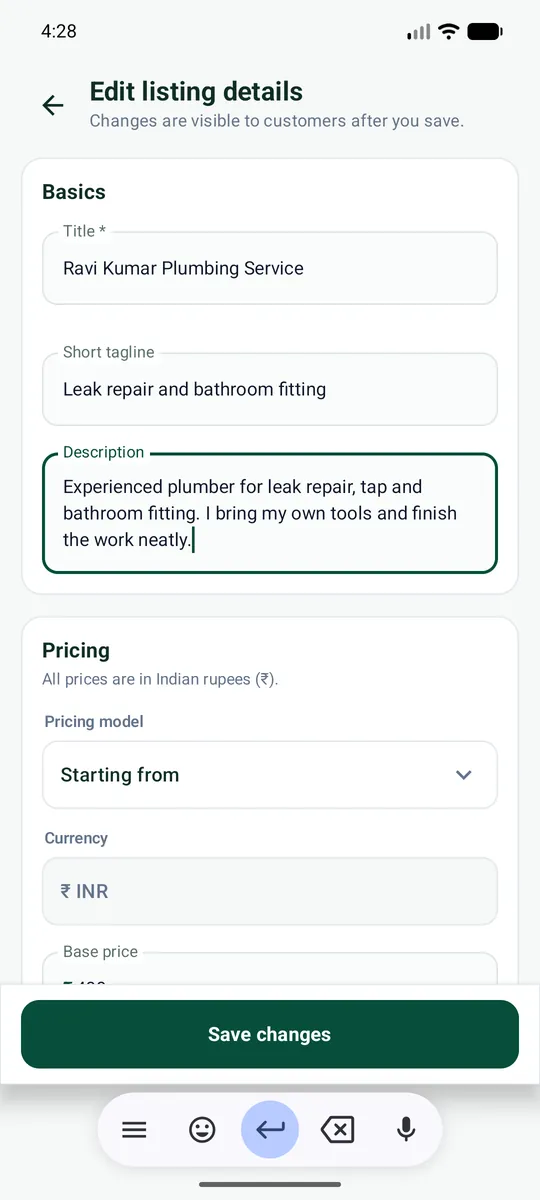
Tap Edit listing. Fill the Basics:
| Field | What to write |
|---|---|
| Title * | Your name or business name. Example: Ravi Kumar Plumbing Service |
| Short tagline | One short line under the title. Example: Leak repair and bathroom fitting |
| Description | 3 to 5 sentences: what you do, your experience, areas you serve. At least 20 characters. Example: Experienced plumber for leak repair, tap and bathroom fitting. I bring my own tools and finish the work neatly. 8 years of experience in New Town and Salt Lake. |
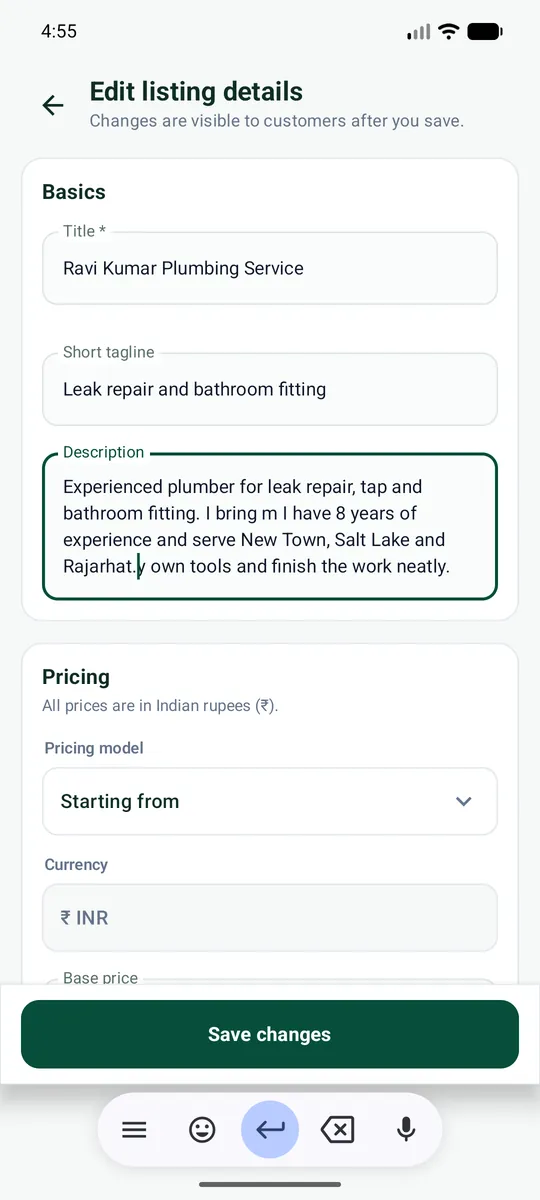
Tap Save changes at the bottom when done.
Edit listing: pricing
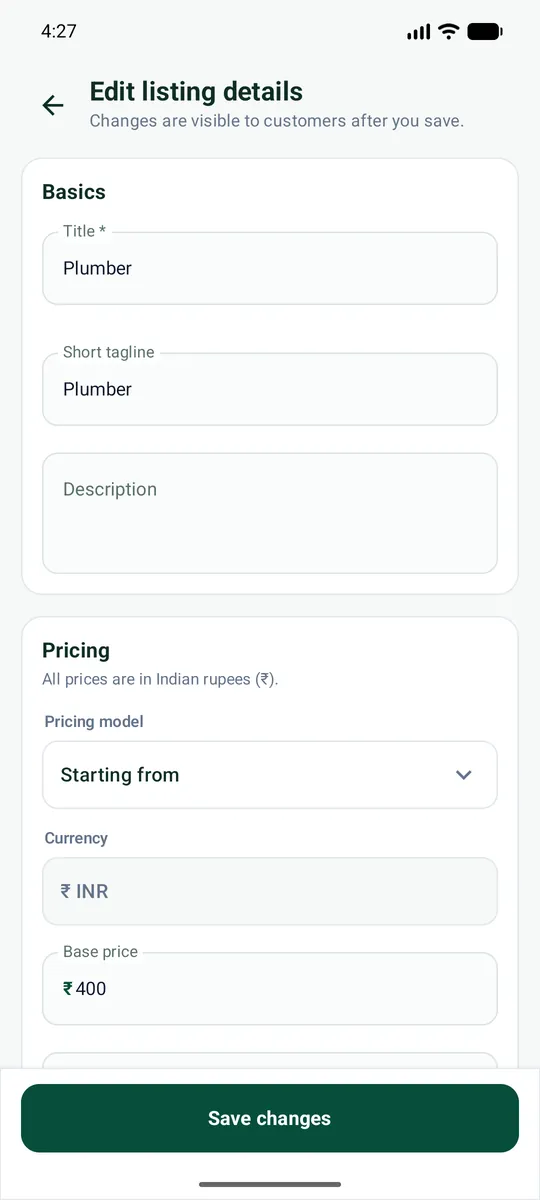
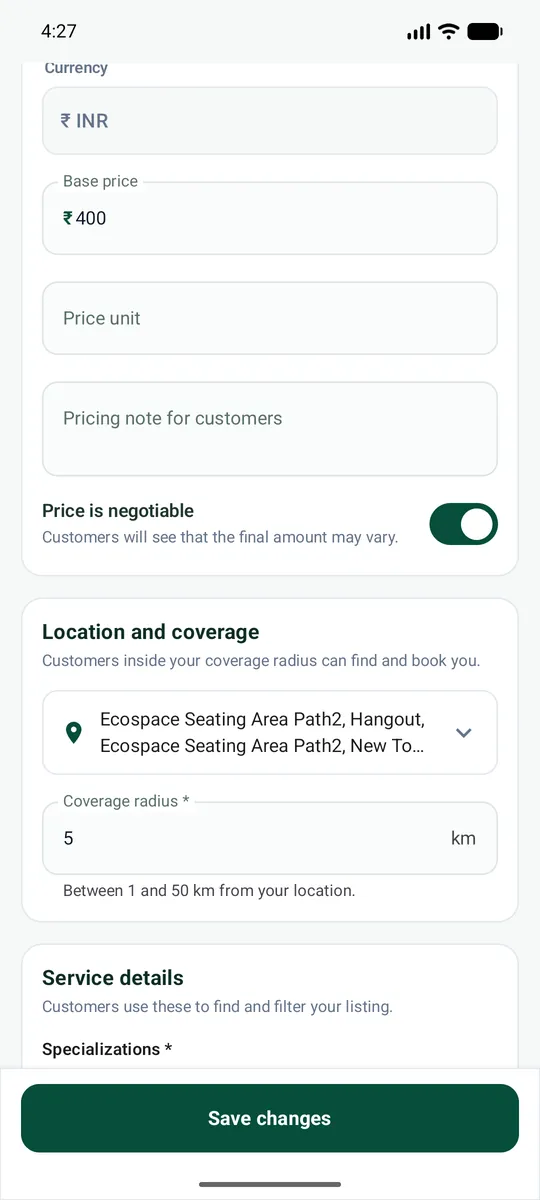
Scroll down to Pricing. All prices are in rupees.
| Field | What it means | Example |
|---|---|---|
| Pricing model | How your price is shown, for example Starting from. | Starting from |
| Currency | Always INR (Indian rupees). | INR |
| Base price | Your starting price in rupees. Your work items can have their own prices. | 400 |
| Price unit | Optional: what the price is for. | per visit |
| Pricing note for customers | Optional: anything customers should know about the price. | Spare parts extra |
| Price is negotiable | Switch on if the final price can change after talking to the customer. | On / Off |
Edit listing: coverage and service details
Scroll down to Location and coverage. Your address is already filled.
Coverage radius * is how far from your address you will go (1 to 50 km). Customers outside this circle cannot book you.
Service details are the details of your service, such as the ones in Your service. Fields with a star * must be filled. Then tap Save changes.
Set your weekly availability
Go back and tap Availability.
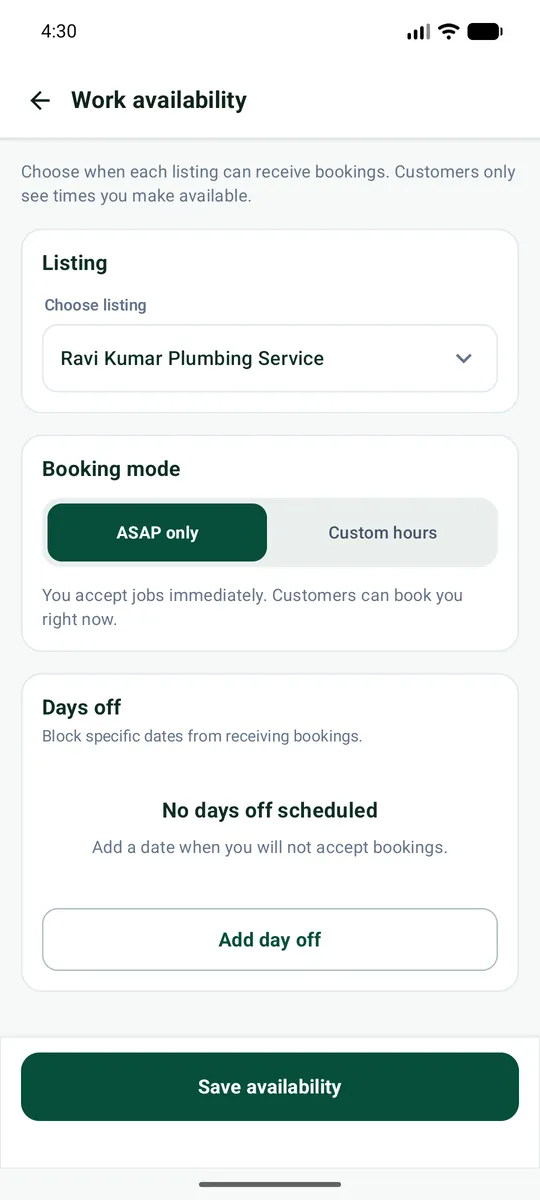
Booking mode has two choices:
- ASAP only - you accept jobs immediately. Customers can book you right now.
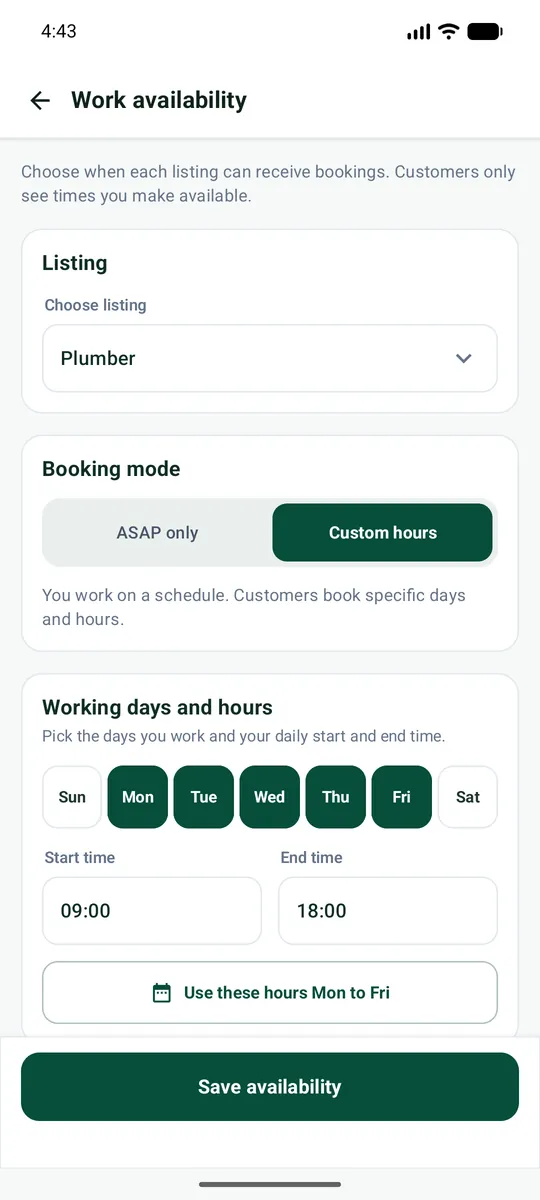
- Custom hours - you work on a schedule. Customers book specific days and hours.
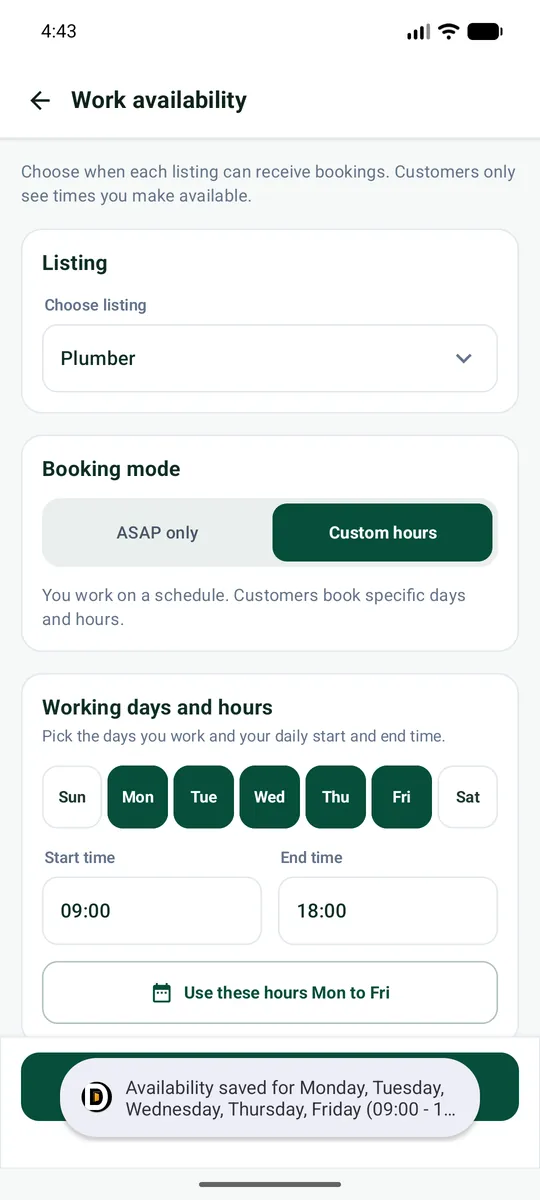
For Custom hours, tap the days you work (they turn green), set the Start time and End time, and tap Save availability.
Days off: tap Add day off to block a holiday so nobody can book you.
Add your listing photo
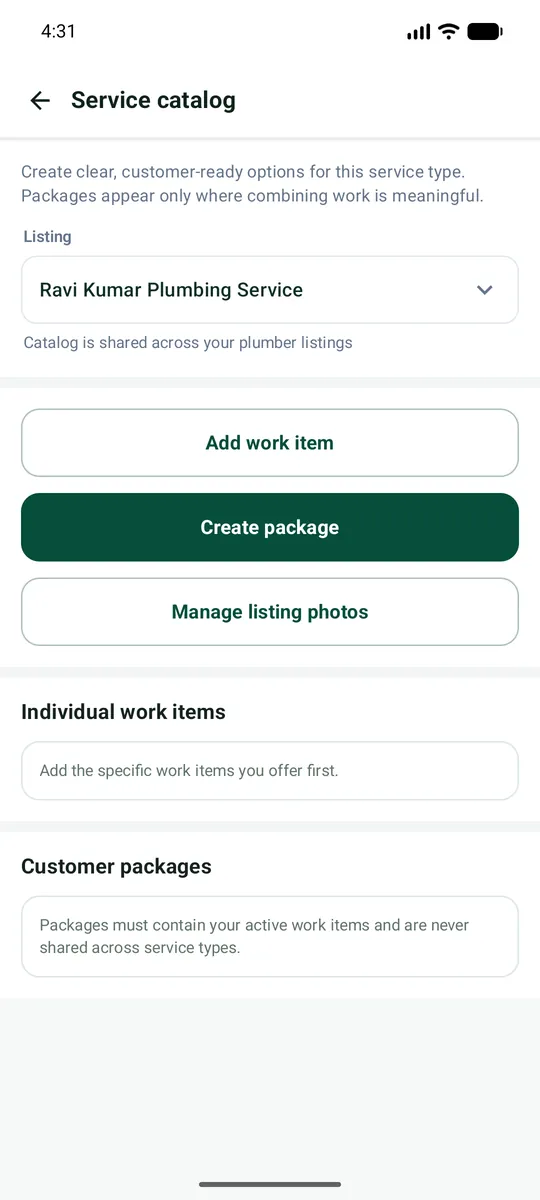
Open Work items & packages and tap Manage listing photos. Add one clear photo of your own work or service. Destora checks every photo before customers see it.
Add work items and packages
Work items are the things you sell. Each one has a name, a price, a time and optional photos. Customers book work items. A listing with no approved work item cannot go live.
Open Work items & packages
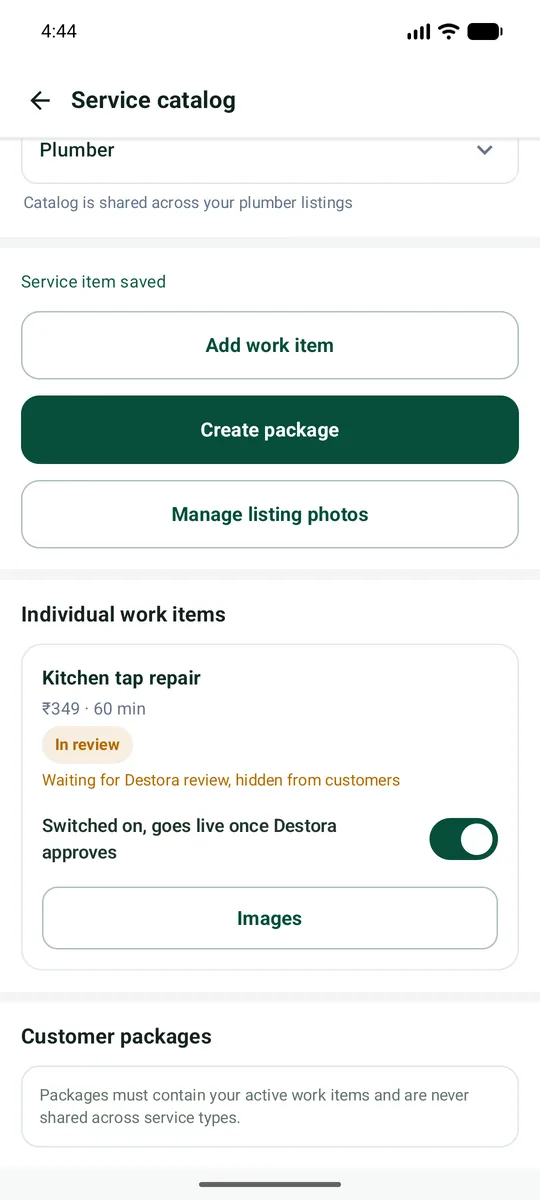
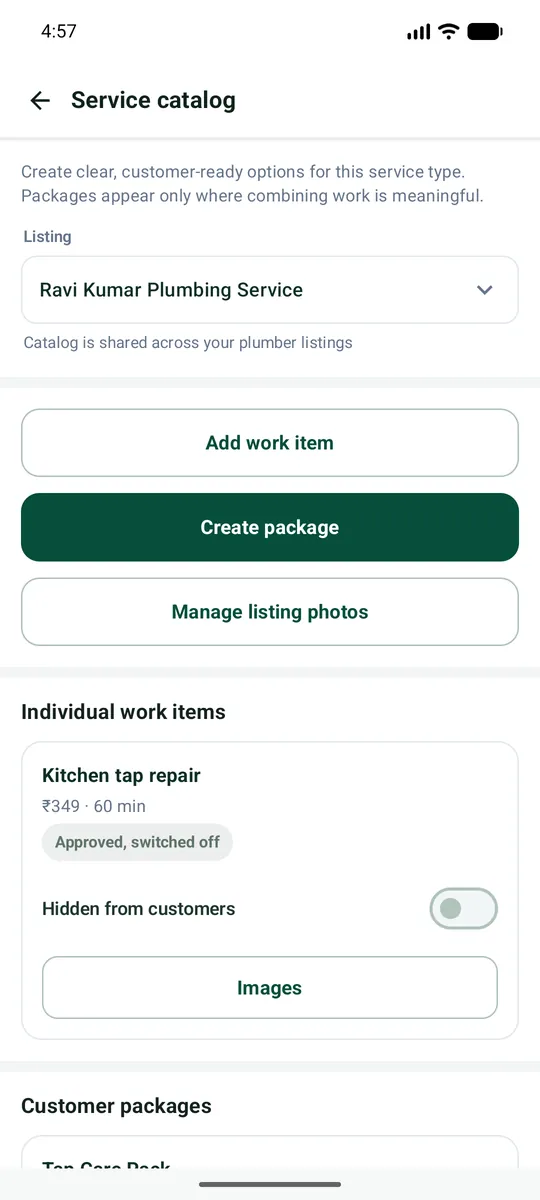
On your listing card tap Work items & packages. You see three buttons: Add work item, Create package and Manage listing photos.
Add a work item
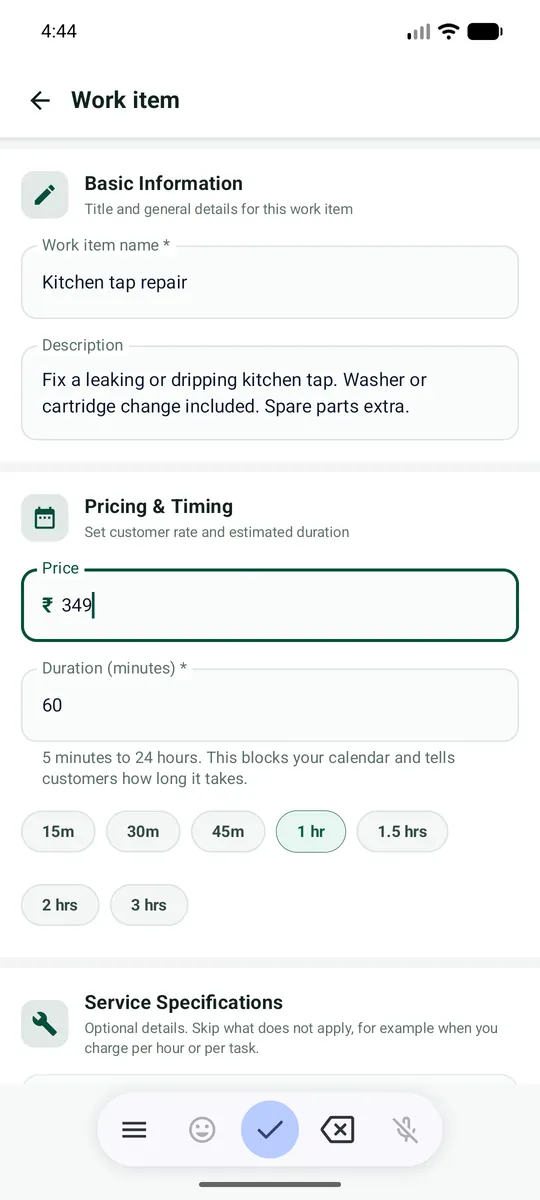
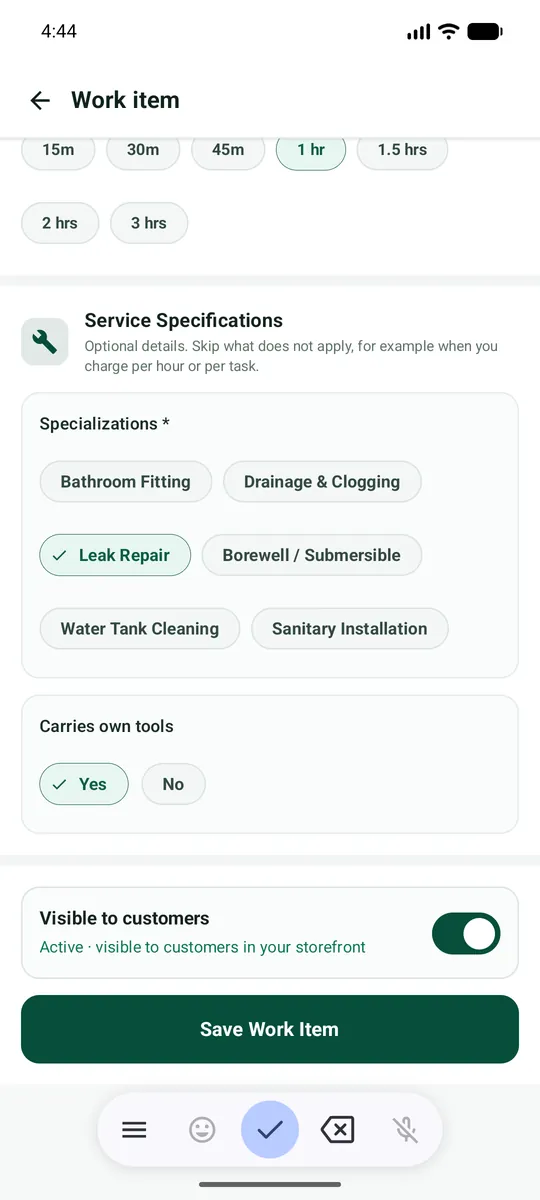
Tap Add work item and fill the form. Then tap Save Work Item.
| Field | What it means | Example |
|---|---|---|
| Work item name * | The job, in simple words. | Tap repair or replacement |
| Description | What is included and what is not (for example spare parts). | Fix a leaking or dripping tap. Washer or cartridge change included. Spare parts extra. |
| Price | The price in rupees for this one job. Must be more than 0. | 349 |
| Duration (minutes) * | How long the job takes. From 5 minutes to 24 hours. Tap a quick button (15 min, 30 min, 1 hr...) or type it. The calendar uses this to block your time. | 60 |
| Service Specifications | Optional extra details shown to customers (same as in your listing). Skip what does not apply. | - |
| Visible to customers | Switch on to show it after Destora approves. Switch off to hide it any time. | On |
Ideas for your first work items
| Work item | Price (Rs) | Time (minutes) |
|---|---|---|
| Tap repair or replacement | 349 | 60 |
| Blocked drain opening | 499 | 60 |
| Bathroom pipe fitting (per point) | 799 | 90 |
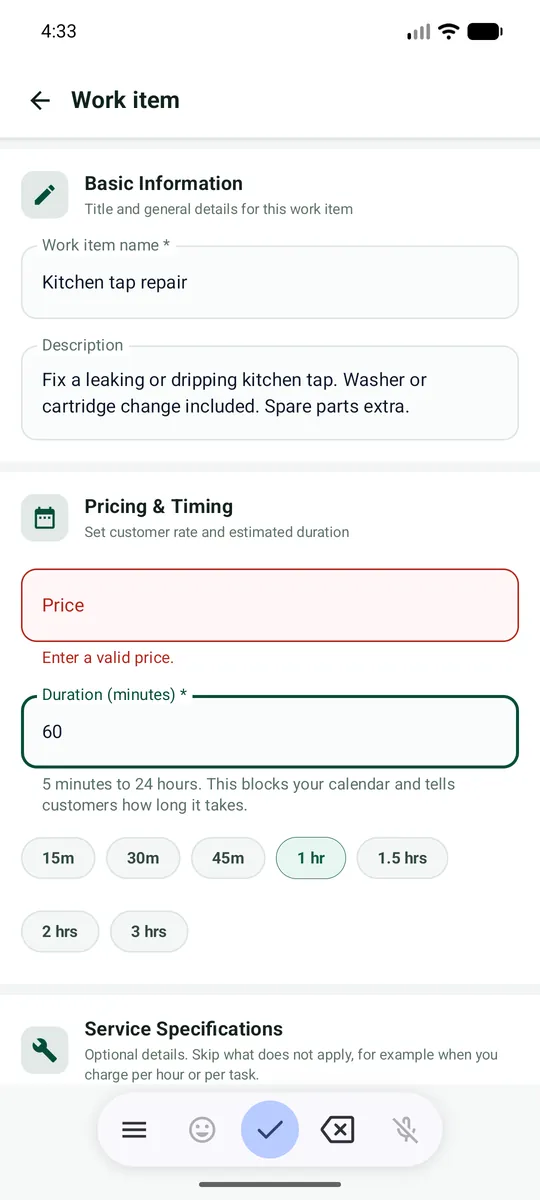
If the app shows a red message
A red box means something is missing or wrong, and nothing is saved until you fix it. For example, Enter a valid price means the price is empty or 0. Fix the red field and tap Save again.
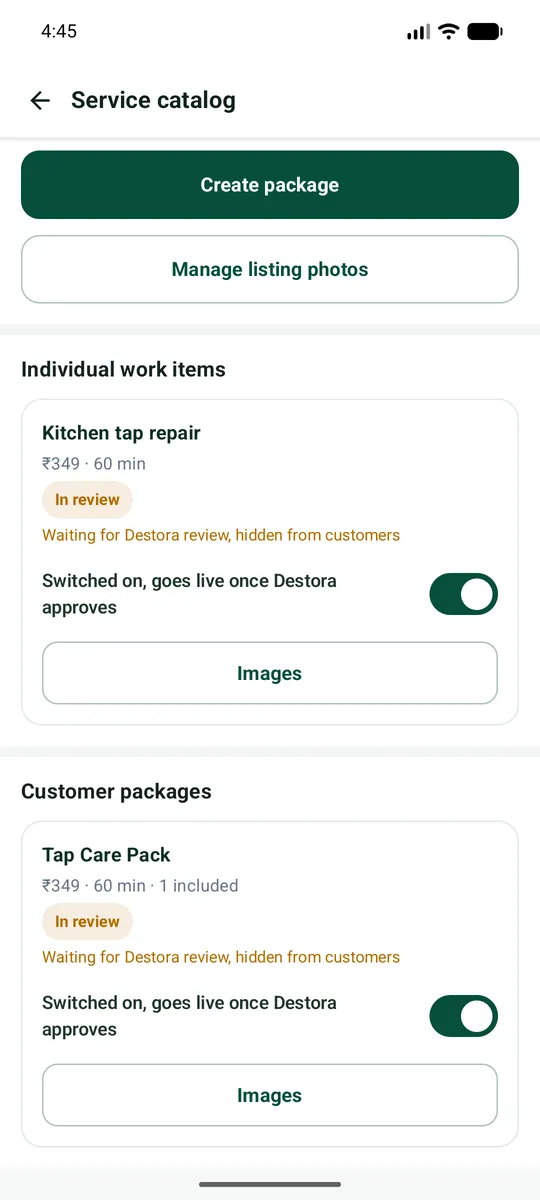
Your item is now "In review"
After saving, the item shows In review and Waiting for Destora review, hidden from customers. This is normal. Add as many items as you want. You can also tap Images under an item to add its photo.
Packages (optional)
A package bundles two or more of your work items at one price. Customers like packages because it is simple. A package can only contain work items of the same service type.
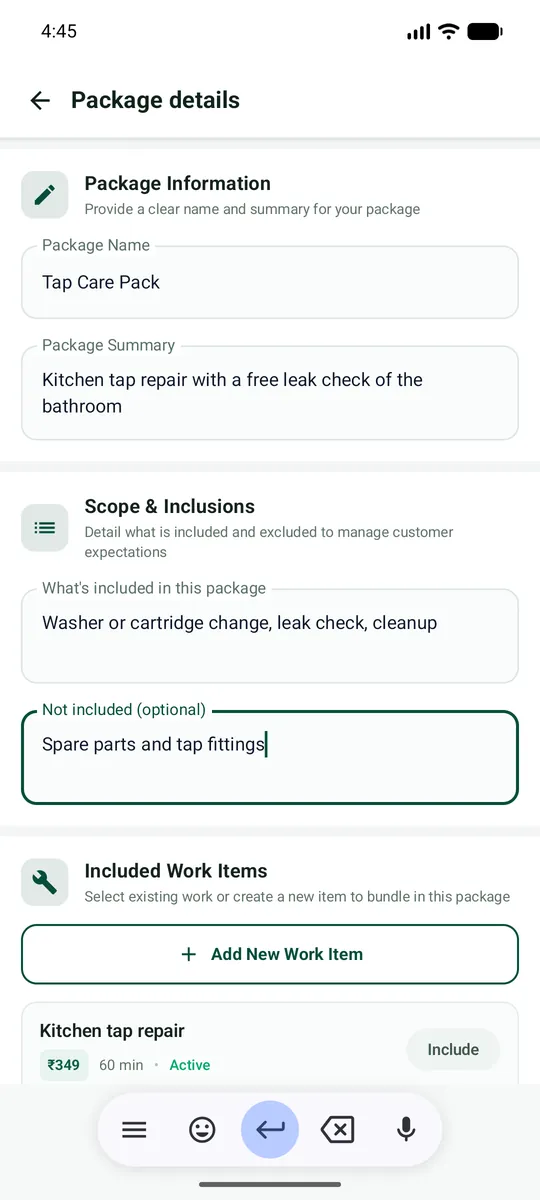
Create a package
Tap Create package.
| Field | What it means |
|---|---|
| Package Name * | Example: Tap Care Pack |
| Package Summary | One line about the package. |
| What's included / Not included | Write what the customer gets and what is extra. |
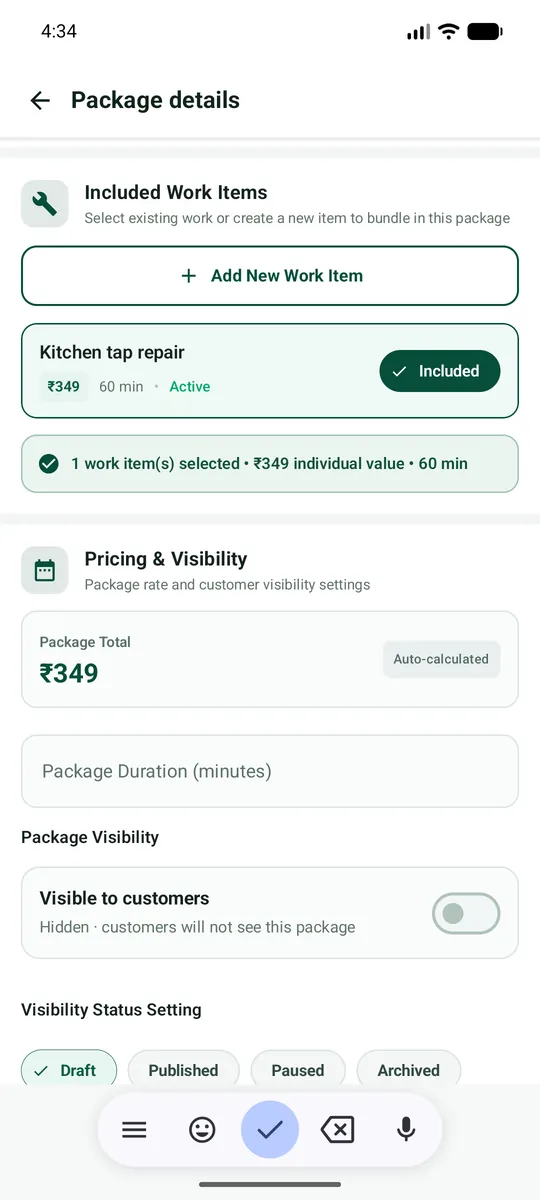
| Included Work Items | Tap Include next to the work items to bundle. You can also Add New Work Item here. |
| Package Total | Worked out automatically from the items you chose. |
| Package Duration (minutes) | Total time. Filled for you from the items. |
Visibility and publish
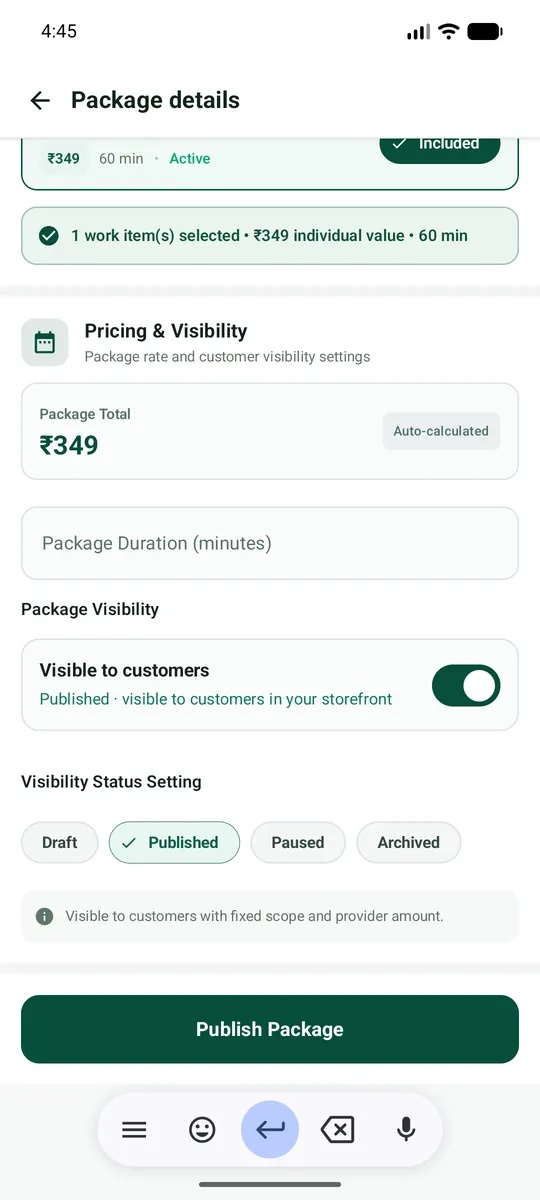
Set Visible to customers. In Visibility Status choose Published when ready (Draft = still writing; Paused = hide for now; Archived = stop selling). Tap Publish Package.
Like work items, a new package goes In review and customers see it only after Destora approves it.
Destora review: what happens and every status
Send the listing for review
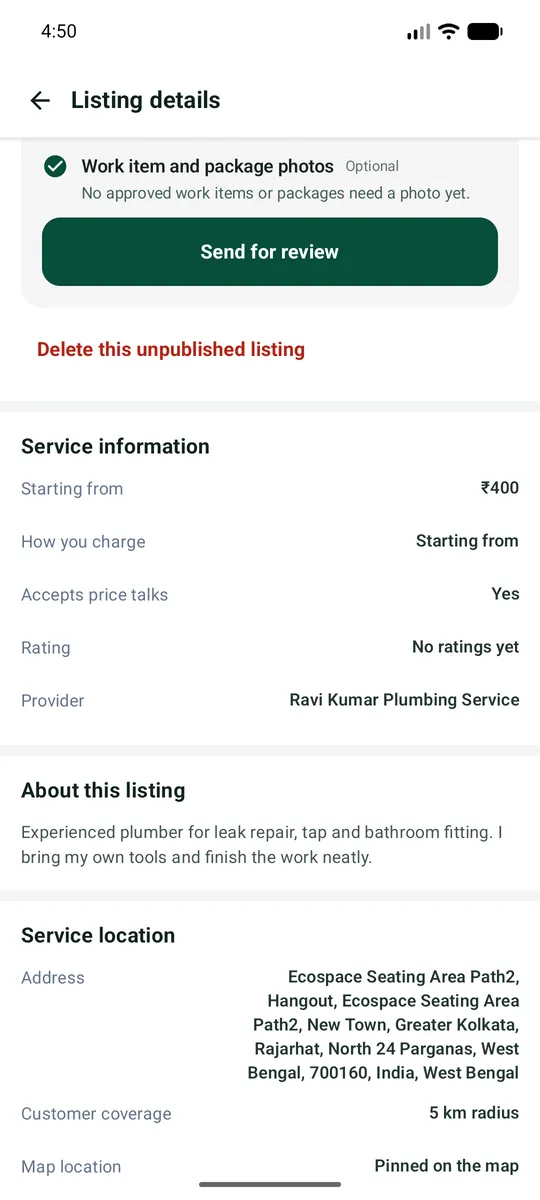
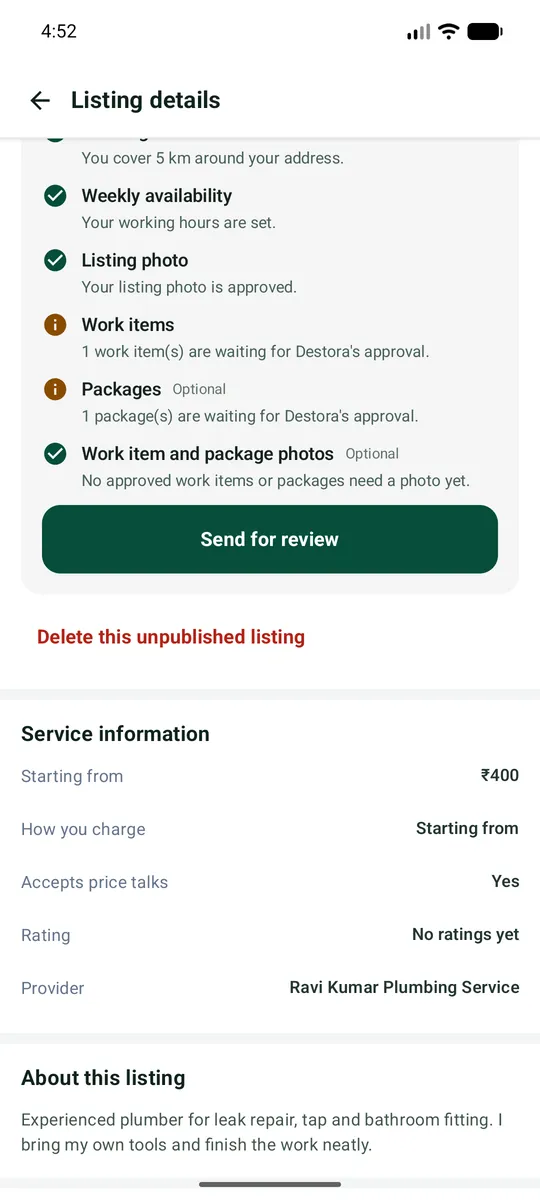
When every required step is green or orange (nothing is red), the green button Send for review appears at the bottom of the checklist. Tap it.
If you tap it too early, the app tells you which steps are still missing. Finish them first.
Wait for Destora
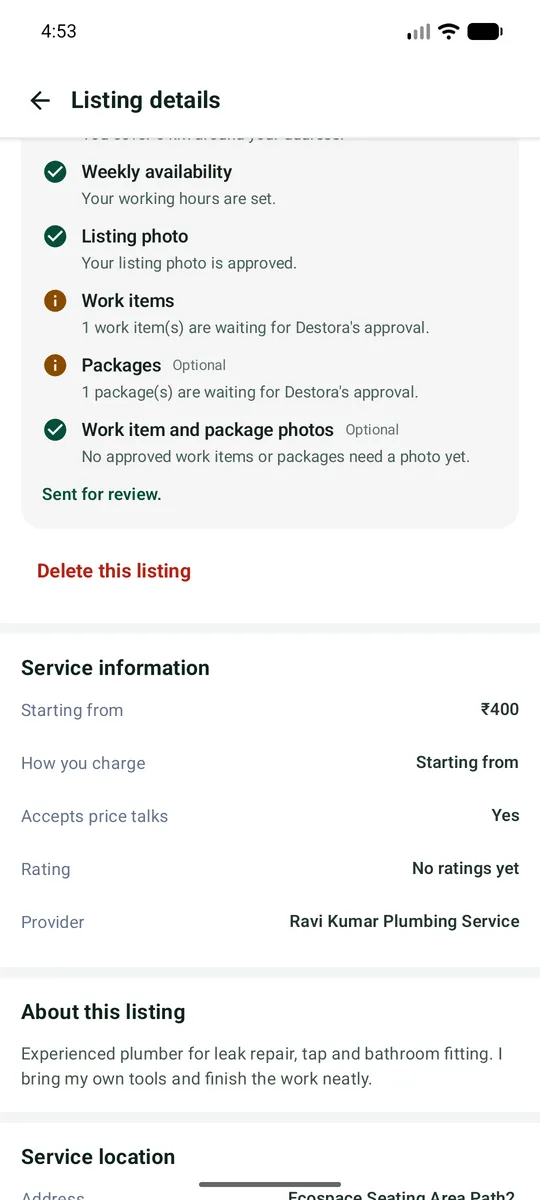
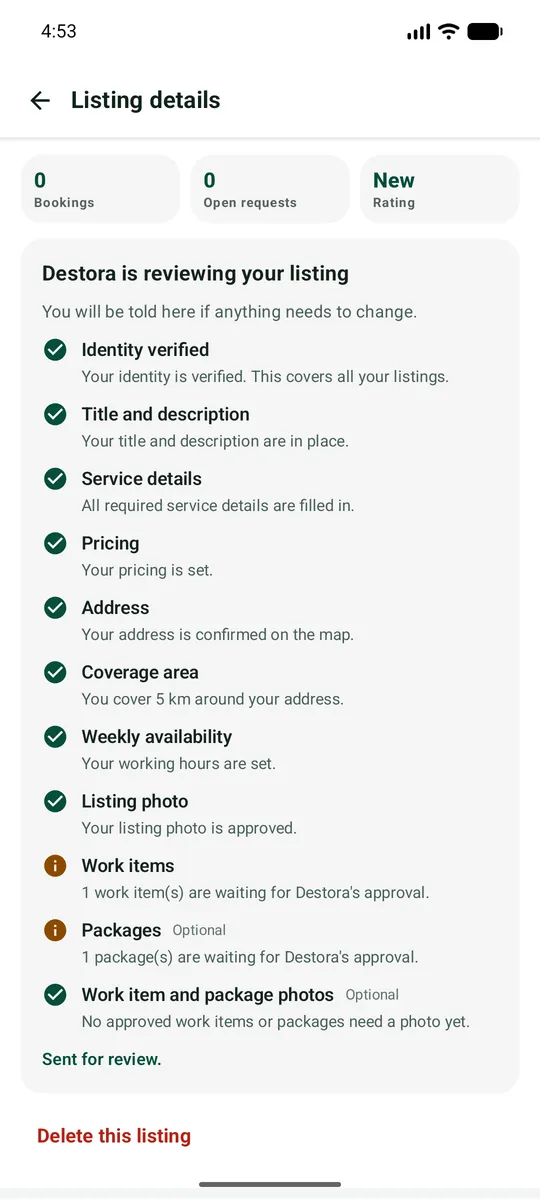
The listing now says Destora is reviewing your listing. You will be told here and by e-mail and notification if anything needs to change. You do not need to do anything. You can still use the app.
What Destora checks
- Your identity documents and selfie.
- Your title, description and details: are they honest and clear?
- Your prices and work items.
- Your photos: are they real, clear and your own?
- Your address and coverage.
The whole journey, with every status
| Status you see | What it means | Do customers see you? | What you do |
|---|---|---|---|
| DRAFT | Your listing is created, but you are still setting it up (or you have not sent it). | No | Finish the checklist and tap Send for review. |
| PENDING / In review | You sent it. Destora is checking. | No | Wait. Nothing to do. |
| Changes asked | Destora wrote what to fix. A red message shows on your Dashboard and the steps have red triangles with comments. | No | Read the comments, tap Fix this, then Send for review again. |
| ACTIVE | Approved! Your listing is live. | Yes - if the switch is on | Keep your work items and availability up to date. |
| INACTIVE | You switched the listing off (or it was paused). | No | Switch it on when you are ready to work. |
| SUSPENDED | Destora stopped the listing, for example after complaints or a problem with documents. | No | Check your e-mail for the reason and write to support@destora.in. |
Work items and packages have their own review
| Status on the item | Meaning | Visible to customers? |
|---|---|---|
| In review | Waiting for Destora. "Switched on, goes live once Destora approves." | No |
| Live | Approved and switched on. | Yes |
| Approved, switched off | Approved, but you turned the switch off. | No |
| Rejected | Destora did not accept it. The reason is shown. | No |
If you change an item a lot after it was approved (for example a big price change), it may go back to In review for a short time.
If Destora asks for changes
Sometimes Destora asks you to change something. This is normal and easy. It does not mean you are rejected.
See the request
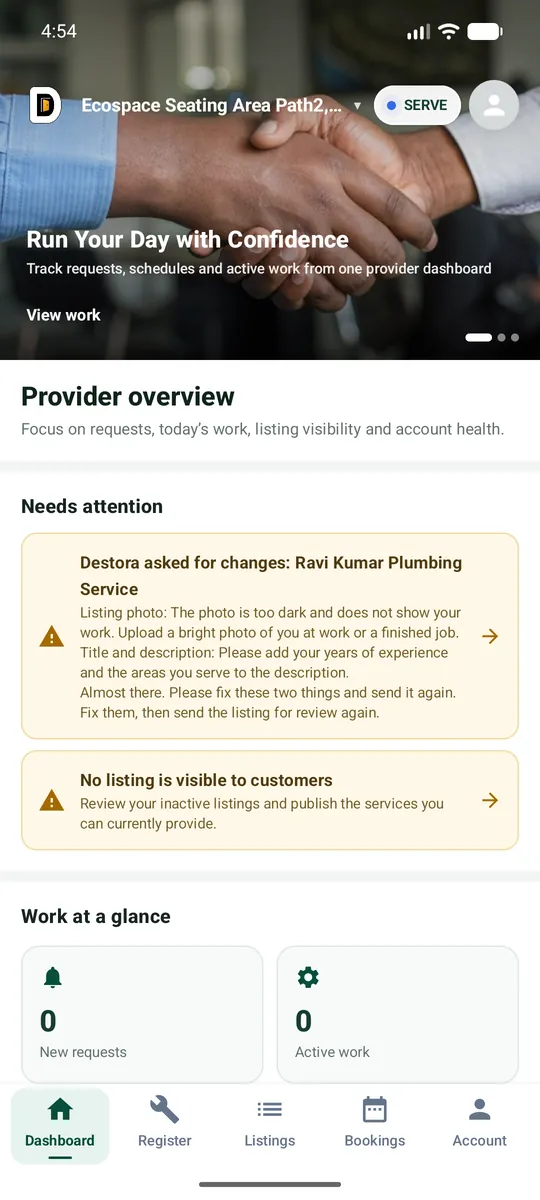
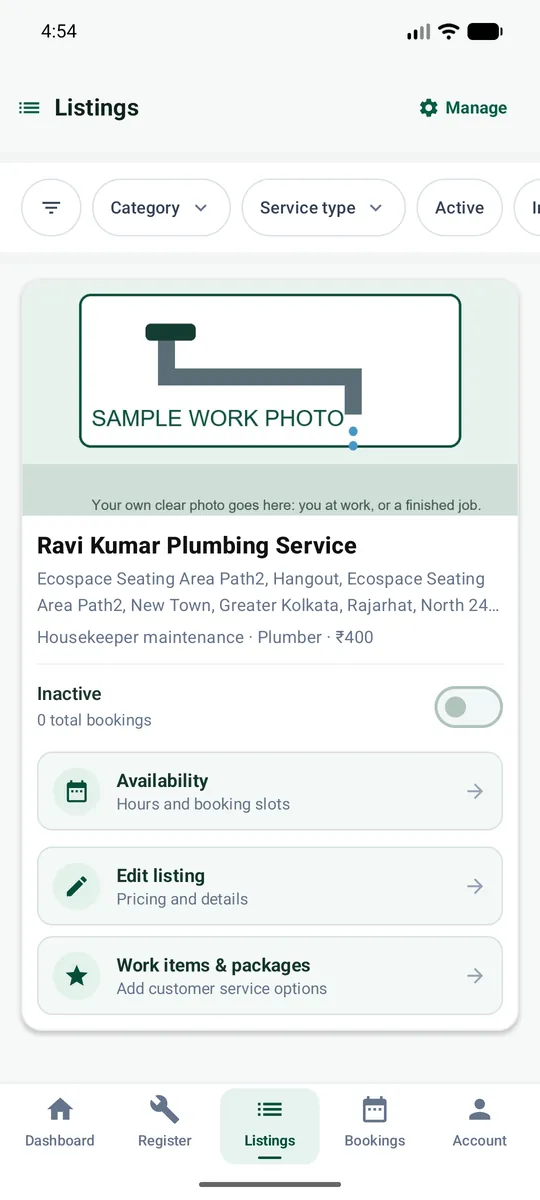
On the Dashboard, under Needs attention, you see Destora asked for changes with the message. Tap it. You also get an e-mail.
Find the red steps
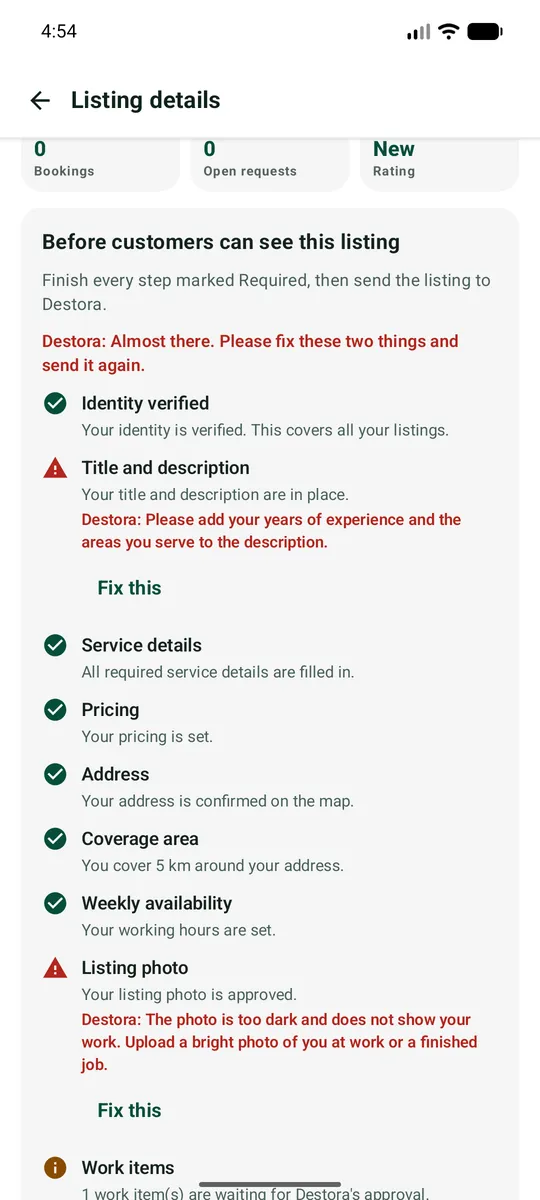
Open Listing details. The steps Destora commented on show a red triangle and Destora's words in red. Read each one carefully.
Tap "Fix this" and change it
Under each red step tap Fix this. The right screen opens. Make the change Destora asked for and tap Save changes. For a photo, upload a new one.
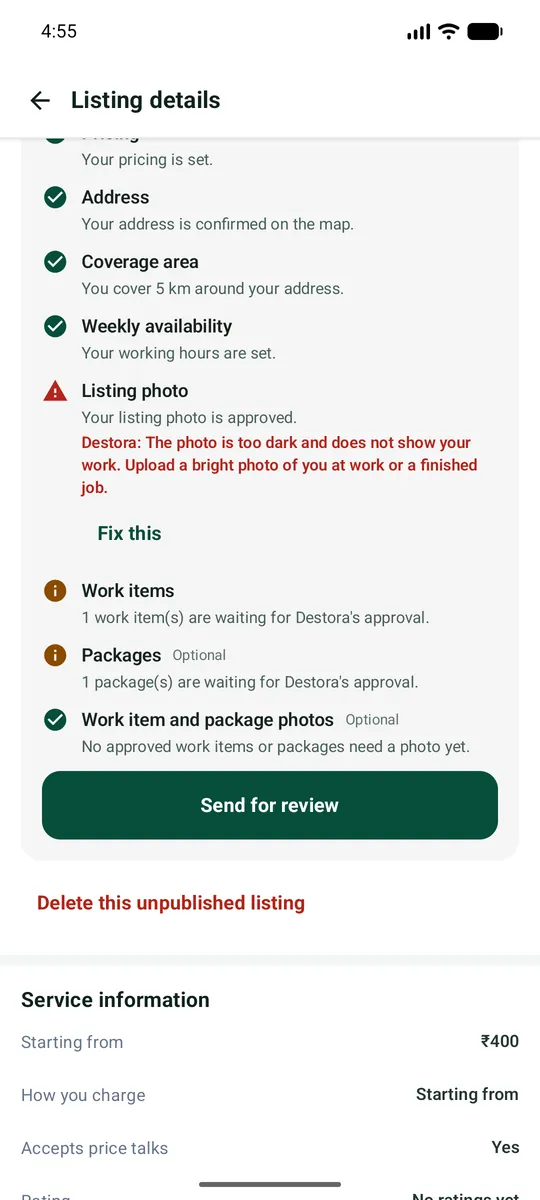
Send for review again
When all red triangles are gone, tap Send for review again. Your old comments are cleared when you send. Destora checks again, usually faster the second time.
Going live and staying live
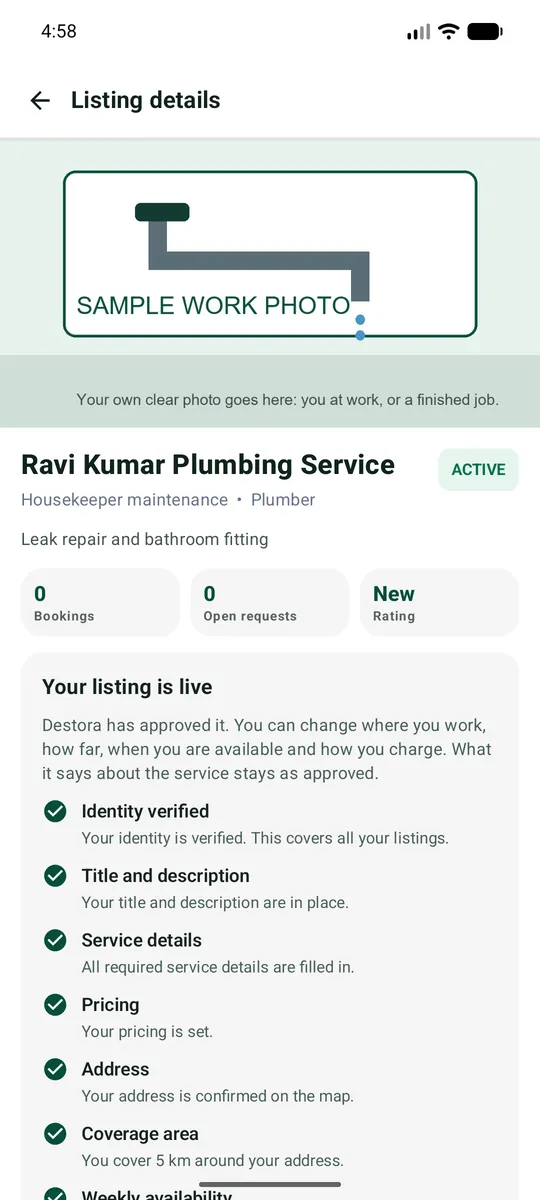
You are approved: your listing is ACTIVE
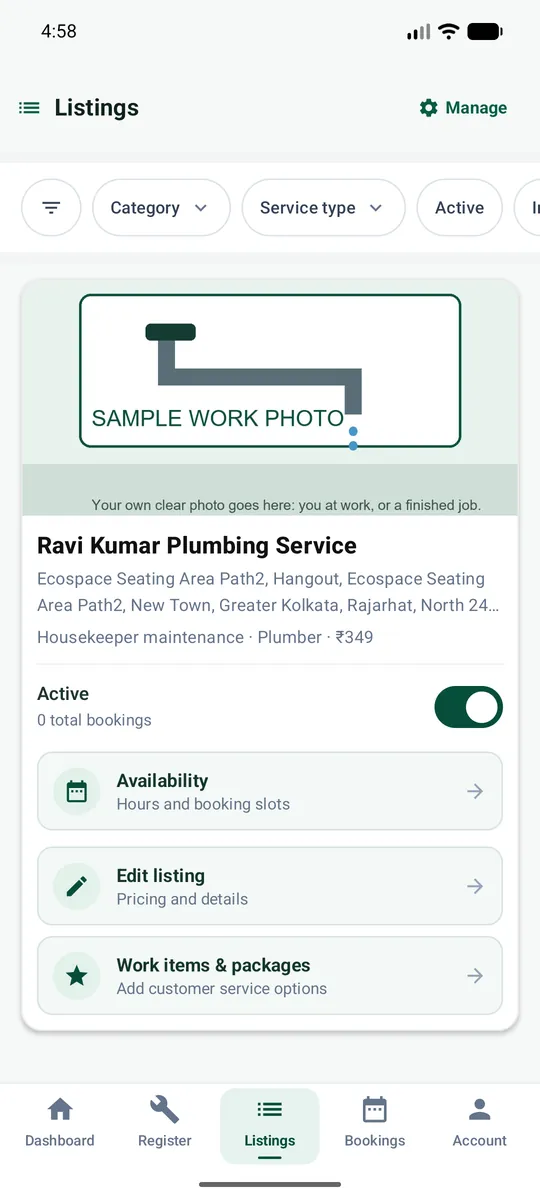
When Destora approves your listing, the status changes to green ACTIVE and you see Your listing is live. You also get a notification and an e-mail.
On the Listings tab, the listing card has a switch. ON (green) means customers can find you. OFF hides you.
When customers can see you, and when not
Customers CAN see and book you when ALL of these are true:
- Your listing is ACTIVE and its switch is ON.
- Your identity is Verified.
- You have at least one Live work item or package (approved and switched on).
- The customer is inside your coverage area.
- You are available: it is within your working hours, or you accept ASAP jobs, and you are not on a day off.
Customers CANNOT see you when ANY of these is true:
- ✕Listing is DRAFT, In review or has changes asked.
- ✕Listing is INACTIVE (switch OFF) or SUSPENDED.
- ✕Identity is Pending, Rejected or not done.
- ✕All your work items are In review, Rejected or switched off.
- ✕The customer is outside your coverage area.
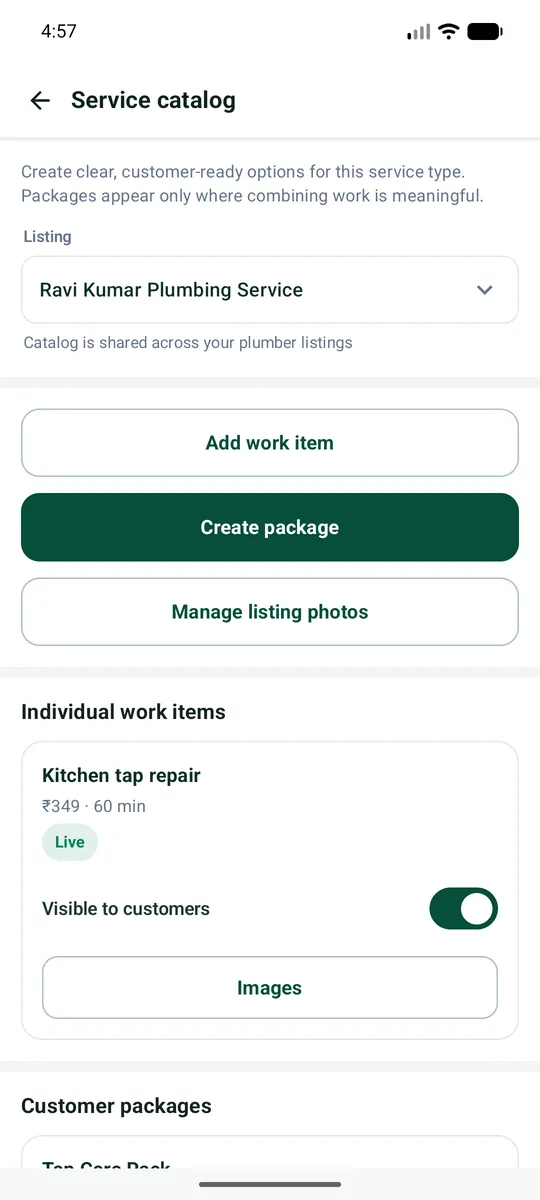
Switch an item off (or the whole listing)
Need a break or an item is not available today? You can switch a work item or a package off without deleting it. It stays approved, but customers do not see it. Switch it back on any time.
To pause everything, switch the listing switch OFF on the Listings tab.
Questions, problems and your checklist
| Problem | What to do |
|---|---|
| I did not get the e-mail code | Wait a minute. Check Spam / Promotions. Check you typed the e-mail without a mistake. Tap Use another email if it is wrong. |
| The map pin is in the wrong place | Go back to the map, zoom in, and drag the pin to the right building. Confirm again. |
| My ID was rejected | Open Account > KYC Verification. Read the reason. The usual reasons: blurry photo, name does not match your account, expired document. Send a new, clear photo. |
| The Send for review button is not showing | At least one required step still has a red triangle. Scroll the checklist and tap Fix this on each red step. |
| My work item says In review for a long time | Destora checks items in turn. If more than 2 working days pass, write to support@destora.in with your listing name. |
| My listing is ACTIVE but I get no requests | Check: the switch is ON, a work item is Live, your coverage radius is big enough, your hours are set, and your price is fair compared with others. Add a good photo and a longer description. |
| I changed something but the app still shows the old thing | Pull down to refresh, or close and open the app. Updates show within a few seconds. |
| I want to change my address or service type | Address: Edit listing > Location. Service type cannot be changed; register a new service for that. |
| Someone asks me to pay for approval | Never pay. Write to support@destora.in. |
| I forgot how to log in | Open the app, tap Get Started, type the same e-mail, and type the new 6-digit code. |
| Do I need my own tools? | No. Switch Carries own tools on or off truthfully; customers can choose for themselves. |
Still stuck?
Write to support@destora.in. Tell us your registered e-mail, your service type and a screenshot of the problem. You can also open Account > Help & Support in the app.
Your one-page checklist
- Registered with my e-mail and the 6-digit code
- Chose Housekeeper & Maintenance > Plumber
- Picked my address on the map and tapped Register & List Service
- Finished KYC (ID) and it says Verified
- Wrote title, tagline and a description of 20+ characters
- Filled my service details and pricing, and a realistic coverage radius
- Set my availability
- Added a clear listing photo
- Added my first work item with price and time
- Tapped Send for review
- Fixed anything Destora asked for and sent again
- Listing is ACTIVE with the switch ON
Ready to register as a Plumber?
Download the Destora app and start your listing today.